Open Ticket
  +373 79 600002
  Telegram Live Chat
  F.A.Q
F.A.Q  English
 Русский
  Română
  Deutsch
  Français
  Türkçe
  Español
  Português
  Українська
  български
  Polski
  Indonesia
  中文 (中国)

































































































 on All Hosting Services




How to Access a Remote Computer or Server: SSH, RDP, VNC, and When to Use Each
Why Remote Access Matters More Than It Looks
You are at home and need to fix a Linux VPS before a site starts failing. An hour later, you need to open a Windows admin tool on another machine as if you were sitting in front of it. Then a bad firewall rule locks you out of a server entirely, so normal login stops working. Later the same day, a coworker or family member needs help on their own computer because they cannot solve the problem alone. All of those situations fall under remote access. They do not, however, need the same kind of access.
That difference matters because remote access is not a bonus feature anymore. It is how real work keeps moving when the machine is in another office, another room, another country, or another datacenter. The right method saves time, avoids unnecessary travel, and turns “I can’t reach the machine” into “I can fix this now.” The wrong method adds friction fast, especially when the system lives in a hosting panel or cloud environment instead of under your desk.
The good news is that this stops being confusing once you break the problem into a few clear categories. By the end of this guide, you will know the main remote access methods, the trade-offs behind each one, and which option fits which job. The real problem is usually not a lack of tools. It is that “remote access” covers several different kinds of control.
Remote Access in One Minute

If you only need the fast answer, start here. Most remote access decisions become much simpler when you match the job to the default method that was built for it.
| Situation | Default best-fit method | Why it usually fits |
|---|---|---|
| 🐧💻 Linux server or VPS administration | SSH | Lightweight shell access, fast, secure, and ideal for server work |
| 🪟 Windows server or Windows desktop administration | RDP | Full remote desktop for GUI tools and Windows workflows |
| 🔒⚠️ Locked-out server, boot issue, or broken network login | Provider web/serial console | Works as a recovery path when normal network access fails |
| 🌐 Remote graphical Linux desktop or lab session | VNC | Screen-level control across platforms when you need the actual desktop |
| 👩💻🤝 Helping a person on their current computer | Remote support tool | Designed for quick cross-device help and guided sessions |
These are defaults, not absolute laws. Still, they are accurate enough to get most readers to a good first answer. The deeper explanation starts when you stop comparing brand names and start comparing access models. The better question is not “Which tool is best?” but “What kind of control do I actually need?”
A Simple Mental Model: Shell, Desktop, Console, or Support?

Most of the confusion disappears once you sort remote access into four buckets.
- Shell means command-line control: you are telling the machine what to do through text commands.
- Desktop means a full graphical session: windows, menus, admin panels, and the interface you would see sitting at the machine.
- Console means last-resort or out-of-band access: the fallback route you use when normal login paths are broken.
- Support means easy person-to-person help: seeing or sharing a live screen so you can guide someone or take temporary control.
| Model | What you control | Common tools | Best fit |
|---|---|---|---|
| 🐚 Shell | Commands and files through a terminal | SSH | Linux servers, automation, headless administration |
| 🖥️ Desktop | Full remote GUI session | RDP | Windows administration, desktop-first workflows |
| ⌨️🖲️ Console | Boot-level or recovery access independent of normal login | Provider web console, serial console | Lockouts, broken network config, rescue work |
| 🤝🛠️ Support | A person’s active desktop session | AnyDesk, TeamViewer, Chrome Remote Desktop | Help desk, family support, quick remote assistance |
The terms around these methods are worth cleaning up once, because they get mixed together constantly. A protocol is the underlying language of the connection, such as SSH, RDP, or VNC. A client/app is the program you use to connect, such as OpenSSH in a terminal, Microsoft Remote Desktop, Remmina, or a support app. A console is a recovery-style access point, often provided through a hosting or cloud panel. A secure path is the protected route you use to reach the machine, such as a VPN, bastion host, or gateway.
📝 Note: Protocol, client, console, and secure path are not interchangeable. SSH, RDP, and VNC define the session style. The app you click is just the client. A console is fallback access. A VPN or bastion is the protected road that gets you there.
The analogies help because they match how the tools actually feel. SSH is like talking directly to the machine’s command desk. RDP is like sitting at the remote desk itself. VNC is closer to looking through and controlling the remote screen. Console access is the emergency side door when the normal entrance fails. And a VPN, bastion, or gateway is not the room you work in at all. It is the private road or security checkpoint around that room.
Layered model:
| Layer | What it does |
|---|---|
| You | The person trying to reach the machine |
| Secure path | VPN, bastion, or gateway that protects the route |
| Access method | SSH, RDP, VNC, or a support tool that defines the interface |
| Remote machine | The server, VPS, desktop, or VM you actually need to control |
You → secure path → access method → remote machineOnce that layering is clear, the later choices stop feeling arbitrary. The rest of the article walks through those four models one by one, starting with the most common server-administration path.
SSH: Best for Linux Servers, Automation, and Low-Bandwidth Work
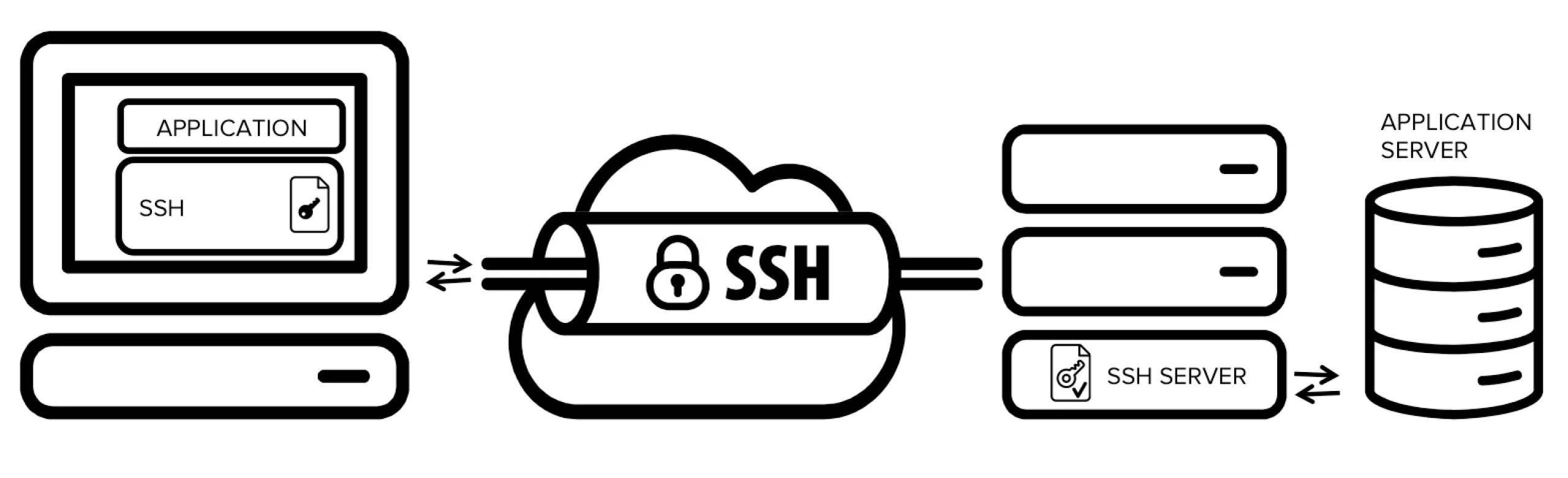
When the real job is command-line control of a Linux or Unix-like system, SSH is the default answer for a reason. In practical terms, SSH gives you an encrypted remote login, a way to run commands on the other machine, and a foundation for related tasks such as secure file transfer and port forwarding. A minimal example looks like ssh user@server.example.com. That one line is not the whole story, but it captures the basic idea: you are opening a protected shell on the remote machine, not streaming a full desktop.
SSH feels lighter because it skips the visual layer and talks directly to the operating system. If you need to restart a service, edit a config file, inspect logs, create users, check disk usage, or run updates, a shell is usually the cleanest interface for the job. On a Linux VPS, a cloud VM, or a dedicated server, that is often exactly what you want.

SSH also shines where conditions are less than ideal. It works well on weak or high-latency connections, it fits headless systems that have no desktop at all, and it supports repeatable administration instead of mouse-driven improvisation. That is one reason hosted Linux environments are usually thought of as SSH-first machines. Even file transfer companions like SFTP or SCP sit naturally beside SSH rather than replacing it as a separate primary access category.
The limitations are real, but they are often misunderstood. SSH does not give you a full graphical desktop by default, and it can look intimidating to readers who associate remote control with clicking through windows. But that is mostly a mismatch between the tool and the expectation. If the machine only needs shell-level administration, SSH is not a lesser experience. It is the precise one. The moment the actual desktop matters more than command precision, you are in different territory.
RDP: Best for Windows Servers and Full Desktop Administration
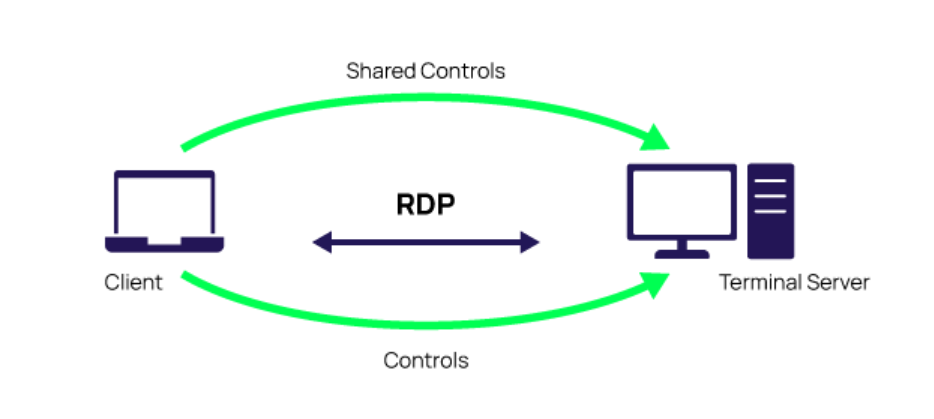
RDP is the mainstream answer when the remote job depends on the real Windows desktop. Instead of opening a shell-first session, you open a remote graphical workspace that feels much closer to sitting in front of the other machine. That makes RDP the natural fit when the work lives inside windows, menus, Server Manager, MMC snap-ins, business applications, or other GUI-heavy admin tools.
This is why RDP is so common in Windows administration. Many Windows workflows were built around a desktop context, not around a pure terminal. If you need to browse system settings, open event viewers, manage roles and features, work inside a line-of-business app, or move through a familiar administrative interface, RDP gives you the real desk rather than the intercom. For many business users, that familiarity is not a luxury. It is the difference between usable and awkward.
RDP also has a practical advantage over improvised screen sharing: it was built as a real remote desktop method, not just a support overlay. It is efficient for its category, integrates naturally into Windows-centric environments, and remains the standard default for hosted Windows servers and Windows VPS plans.
📝 Note: One caveat matters for less technical readers: Windows Home can act as an RDP client, but it is not the usual host edition for accepting incoming RDP sessions. And where RDP is supported, Network Level Authentication (NLA) is the normal recommended baseline because it authenticates the user before the full remote session is created.
Its downsides are the mirror image of SSH’s strengths. RDP is heavier than a shell session, less natural for CLI-first Linux administration, and a poor choice to expose casually just because it feels familiar. If your real task is a headless Linux server, using RDP thinking “desktop equals easier” usually adds the wrong kind of complexity. And not every visual connection is RDP anyway. Sometimes what you really need is screen-level control across platforms, or rescue access when the normal login path is broken.
VNC and Provider Web Consoles: When You Need Screen-Level or Rescue Access
This is the section where readers often blur several things together. VNC and provider consoles both help when you need something more visual or more low-level than SSH, but they are not solving the same problem. One is about controlling the screen. The other is about reaching the machine even when normal network access is failing.
VNC for graphical screen-level control

VNC is best understood as a cross‑platform tool that lets you view and control a remote machine’s actual graphical screen, making it especially useful for Linux desktops, lab setups, or mixed environments where “show me the display” matters more than protocol optimization. Its strength lies in flexibility, but compared to RDP it often feels less polished for Windows administration, and its security depends heavily on configuration and exposure—well‑secured deployments can be safe, while casual setups may be weak.
Provider web or serial console for rescue access
Provider web consoles and serial consoles solve a different problem entirely: they remain available when firewall mistakes, network issues, boot problems, or broken login settings prevent normal SSH or RDP access. In hosting and cloud environments, this often means opening a browser-based or panel-based console session that reaches the machine independently of its usual network state.
If you manage VPS or dedicated server infrastructure, this is not a minor extra. It is part of the real management experience. A hosting provider’s console can be the difference between a quick recovery and a painful ticket-based lockout when a bad rule blocks the normal path. If you are comparing providers for a server you will manage yourself, console availability deserves to be treated as a real operational feature, not as a forgotten checkbox.
📝 Note: A rescue console is fallback infrastructure, not your daily admin tool. If you are living in the panel console all the time, the normal access method or network design probably needs work.
VNC and provider consoles matter precisely because they are not the default daily answer. One helps when you truly need screen-level control. The other helps when the usual access path breaks. There is still one major category left, and it is built less for infrastructure administration than for helping people quickly.
Remote Support Tools: The Fastest Option for Helping Users Across Devices
Remote support tools such as AnyDesk, TeamViewer, and Chrome Remote Desktop are best when the real job is helping a person on an existing computer, not running a server long-term. They feel easier because ease is the point: cross-platform access, low-friction connection flows, NAT-friendly behavior in many cases, and a design built around “help me get into this machine quickly” instead of “let me operate infrastructure for months.”

This category also handles two slightly different use cases.
- Unattended access means a machine is configured so you can reconnect to it later without someone sitting there approving each session.
- A support session means the other person opens the app, shares a code or invitation, and you help them in that moment.
That distinction matters because it maps to intent. One is ongoing convenience. The other is guided assistance.
The limitations are exactly what make these tools the wrong default for serious server administration. They usually depend on a user session or graphical desktop being there in the first place. They are less natural for headless Linux servers, less predictable as long-term infrastructure tools, and more dependent on vendor services, browsers, or outside connectivity conditions than SSH or a provider console. Their strength is legitimate, but narrow: they are excellent for fast human support, but they are still a poor default for long-term server administration.
The Decision Matrix: Which Remote Access Method Fits Which Job?

At this point, the decision should feel mechanical instead of mysterious. Ask four questions in order:
- Do you need commands, a full desktop, rescue access, or person-to-person support?
- What operating system or environment is on the other end?
- Are you on a slower or weaker connection where lightweight access matters?
- Are you locked out of the normal login path already?
The matrix below turns those questions into a practical comparison.
| Method | Target OS / environment | Interface type | Ease for beginners | Performance on slow links | Best use case | Typical downside |
|---|---|---|---|---|---|---|
| SSH | Linux, Unix-like servers, headless VPS | Shell / terminal | Medium | Excellent | Server admin, automation, config work, low-bandwidth access | No full desktop by default; terminal learning curve |
| RDP | Windows servers and Windows desktops | Full remote desktop | High | Good | GUI-based Windows administration and business apps | Heavier than SSH; should not be exposed carelessly |
| VNC | Linux desktops, mixed-platform graphical sessions | Screen-level remote control | Medium | Fair | Remote graphical sessions where screen access matters | Often less optimized than RDP; security depends on deployment |
| Provider web/serial console | Hosted servers, VPS, cloud VMs | Rescue / out-of-band console | Medium | Good | Recovery when SSH or RDP is unavailable | Not ideal for daily work; usually limited and slower to live in |
| Remote support tool | Existing user desktops on Windows, macOS, Linux, ChromeOS | Shared or controlled support session | High | Good | Helping a user quickly across devices | Less natural for headless servers and long-term admin workflows |
💡 Tip: Pick one primary method and one fallback path. For example: SSH plus provider console for a Linux VPS, or RDP plus provider console for a Windows server. That habit turns lockouts into inconveniences instead of outages.
In practice, the defaults are simple: SSH for self-managed Linux servers, RDP for Windows GUI administration, VNC when the remote display itself matters, and the provider console when normal login is gone.
Support tools stay best for helping a person on an active machine, while team access usually benefits from placing SSH or RDP behind a VPN, bastion, or gateway rather than treating open admin ports as a convenience feature.
Security Baseline and Common Mistakes

Safe remote access is about two separate decisions working together: the right method and the right path. SSH and RDP are the work interfaces. A VPN protects the route to them. A bastion or gateway is a controlled jump point that sits in front of more sensitive machines so they are not all exposed directly. Readers often compare “VPN vs SSH” or “VPN vs RDP” as if they were alternatives, but they solve different problems: a VPN controls who can reach the machine, while SSH and RDP define how you work once you are connected.
⚠️ Warning: Do not expose administrative access casually to the public internet just because it works. Remote admin ports should be reachable by design, not by accident.
That warning is especially important with desktop-oriented access. RDP should keep Network Level Authentication where supported; turning protective features off should be the exception case, not the default mindset. The same general logic applies elsewhere: “encrypted” is useful, but it is not the same thing as “operationally safe.” A rescue console reduces the pain of lockouts, but it does not replace sane day-to-day access hygiene.
The most common mistakes are usually simple:
- choosing the method by popularity instead of by task fit
- treating support tools as the default answer for server administration
- not verifying a working fallback access path before you need it
- assuming that an encrypted session is automatically safe no matter how it is exposed
Once you think in terms of the right interface plus the right access path, remote access stops looking like a pile of confusing acronyms. It becomes a practical design choice. That is the point where the subject gets easier instead of more technical.
Choose the Access Method That Matches the Job

The practical rule is simple: choose the interface first, then secure the path around it. If you are choosing hosting from AlexHost or anywhere else, treat access as part of the product: verify the admin method you need, confirm that a recovery path exists, and avoid exposing administrative ports more broadly than necessary. Once that is settled, deeper setup and hardening guides become much easier to apply.