Open Ticket
  +373 79 600002
  Telegram Live Chat
  F.A.Q
F.A.Q  English
 Русский
  Română
  Deutsch
  Français
  Türkçe
  Español
  Português
  Українська
  български
  Polski
  Indonesia
  中文 (中国)
























































































































 on All Hosting Services





How to Reset Your AlexHost Account Password

If you cannot sign in to your AlexHost Client Area, you can reset your password directly from the login page in a few steps.
Before You Start
- Make sure you can access the mailbox linked to your AlexHost account.
- After you click the reset link, the browser may open the login page automatically, but you must first check your email for the newly generated password.
Step 1: Open the Password Recovery Page
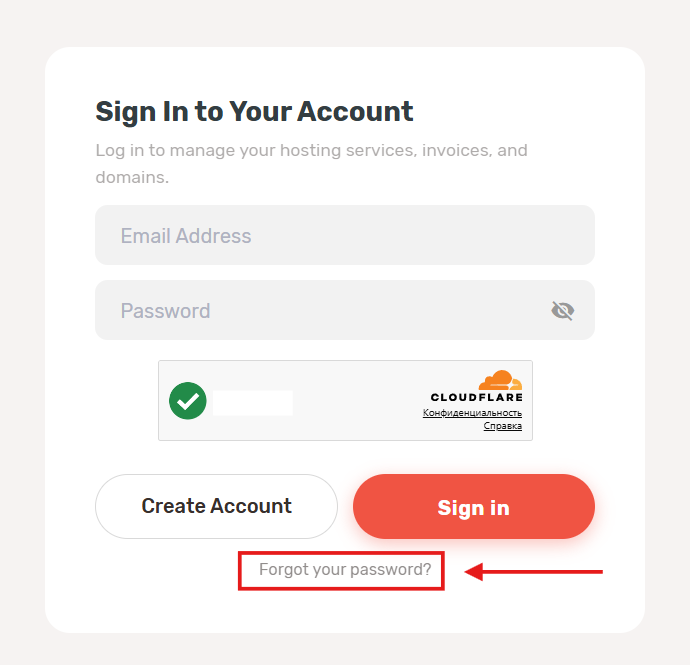
On the AlexHost sign-in page, click “Forgot your password?”.
Step 2: Enter Your Account Email Address
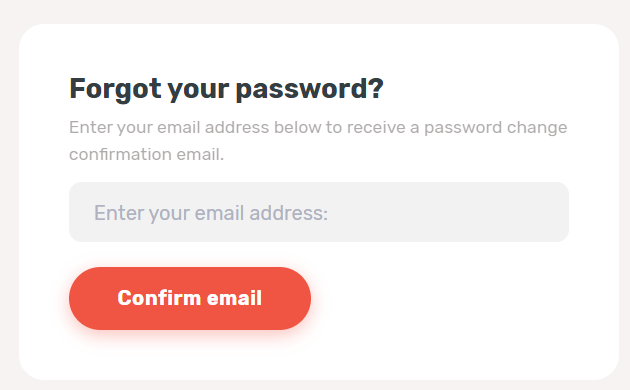
Type the email address used for your AlexHost Client Area account, then click Confirm email.
Step 3: Wait for the Confirmation Message
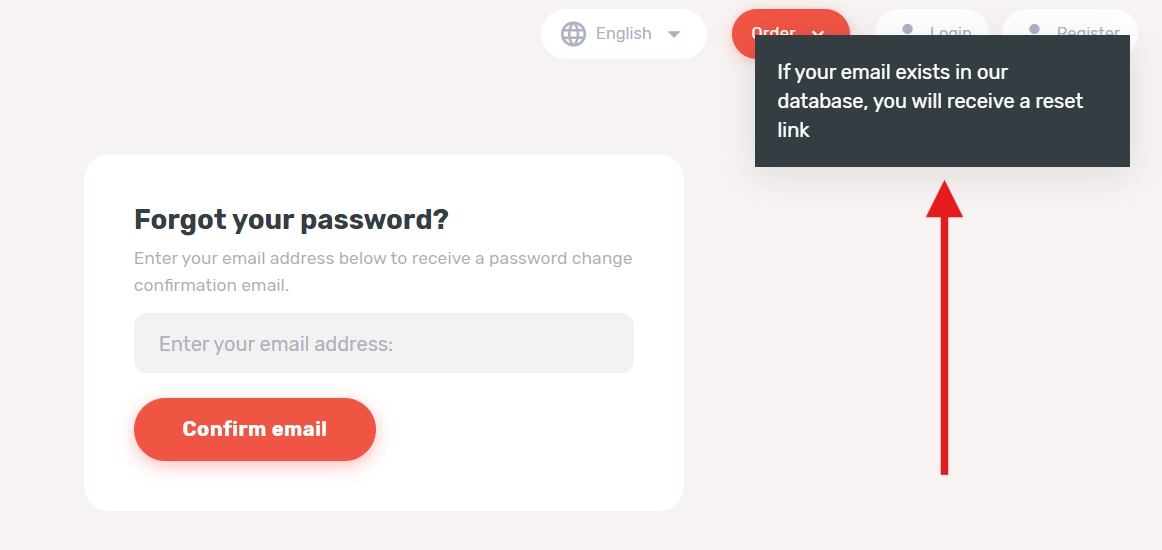
If the email address exists in the system, AlexHost shows a message confirming that a reset link will be sent to your inbox.
Step 4: Open the Password Reset Email
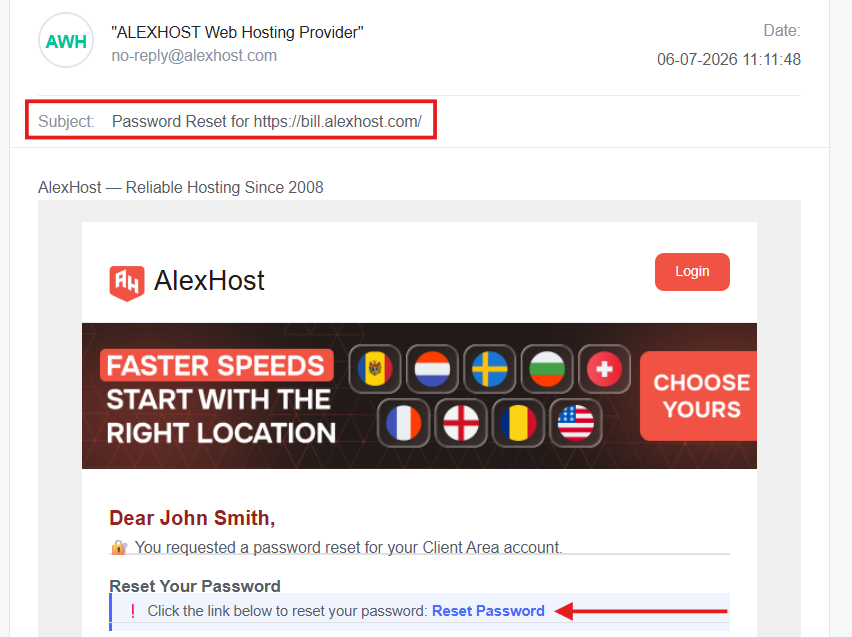
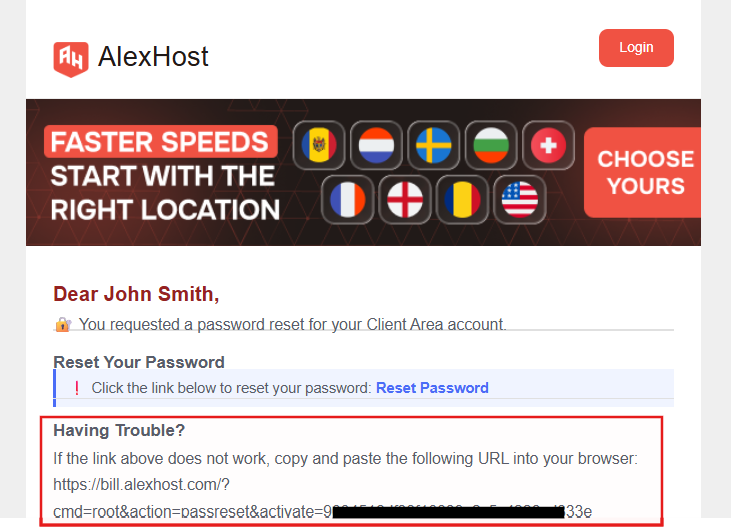
Go to your inbox and look for an email from no-reply@alexhost.com with the subject Password Reset for https://bill.alexhost.com/. Open the message and click Reset Password.
If the Reset Button Does Not Work
If clicking Reset Password does not open the reset page, use the fallback URL included in the same email. Copy the full link shown under Having Trouble? and paste it directly into your browser.
Step 5: Check the Second Email for Your New Credentials
After you click Reset Password, your browser may redirect you back to the login page right away. Do not try to sign in yet.
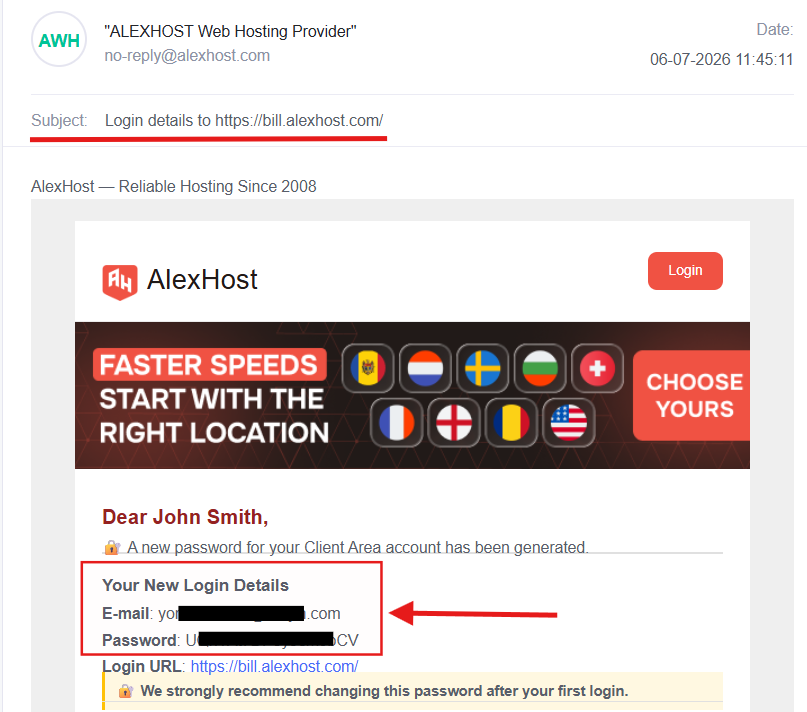
First, return to your inbox and look for the next email from AlexHost with the subject Login details to https://bill.alexhost.com/. This message contains your updated login credentials, including the new password.
Step 6: Return to the Login Page and Sign In
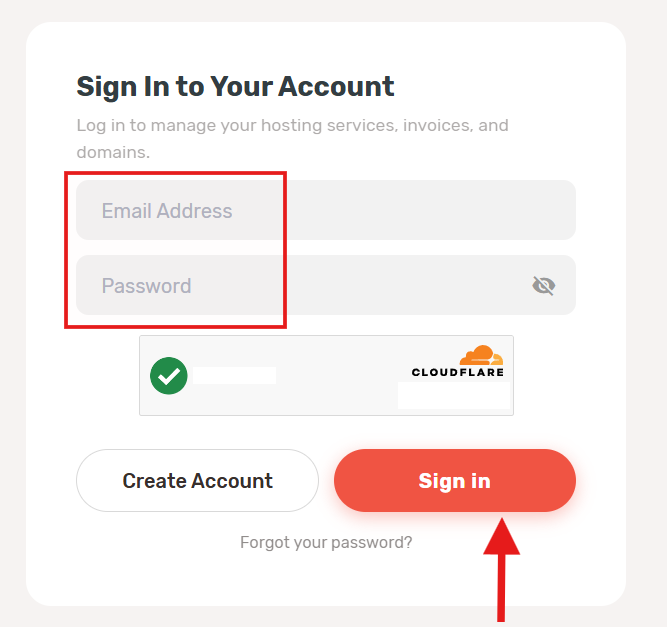
Go back to the AlexHost login page, enter your email address and the new password from the email, complete the security check if prompted, and click Sign in.
Final Note

Once you are back in your account, it is a good idea to change the generated password to a password of your own, and store it using a password manager software. The login details email also recommends changing it after your first login.