Open Ticket
  +373 79 600002
  Telegram Live Chat
  F.A.Q
F.A.Q  English
 Русский
  Română
  Deutsch
  Français
  Türkçe
  Español
  Português
  Українська
  български
  Polski
  Indonesia
  中文 (中国)




































































































 on All Hosting Services





25.05.2026 Updated: 02.09.2026
Administration Dedicated Servers
Custom ISO Installation via IPKVM: IBM Servers
IBM Servers
Applies to:
- 2x Intel(R) Xeon(R) E5-2680 v2
- 2x Intel(R) Xeon(R) E5-2690 v2
- 2x Intel(R) Xeon(R) E5-2620 v3
- 2x Intel(R) Xeon(R) E5-2699 v3
- 2x Intel(R) Xeon(R) E5-2690 v4
This platform uses the IBM/Lenovo Integrated Management Module II interface. The process is to open Remote Control, mount the ISO from your local PC, reboot, then use the one-time boot menu to start from CD/DVD Rom.
Before You Start
- Make sure you have IPKVM/IMM access credentials.
- Keep the ISO file ready on your local computer.
- Schedule downtime. Booting from a custom ISO can interrupt services, and a reinstall can erase existing data.
Step-by-Step
- Log in to the server management interface.
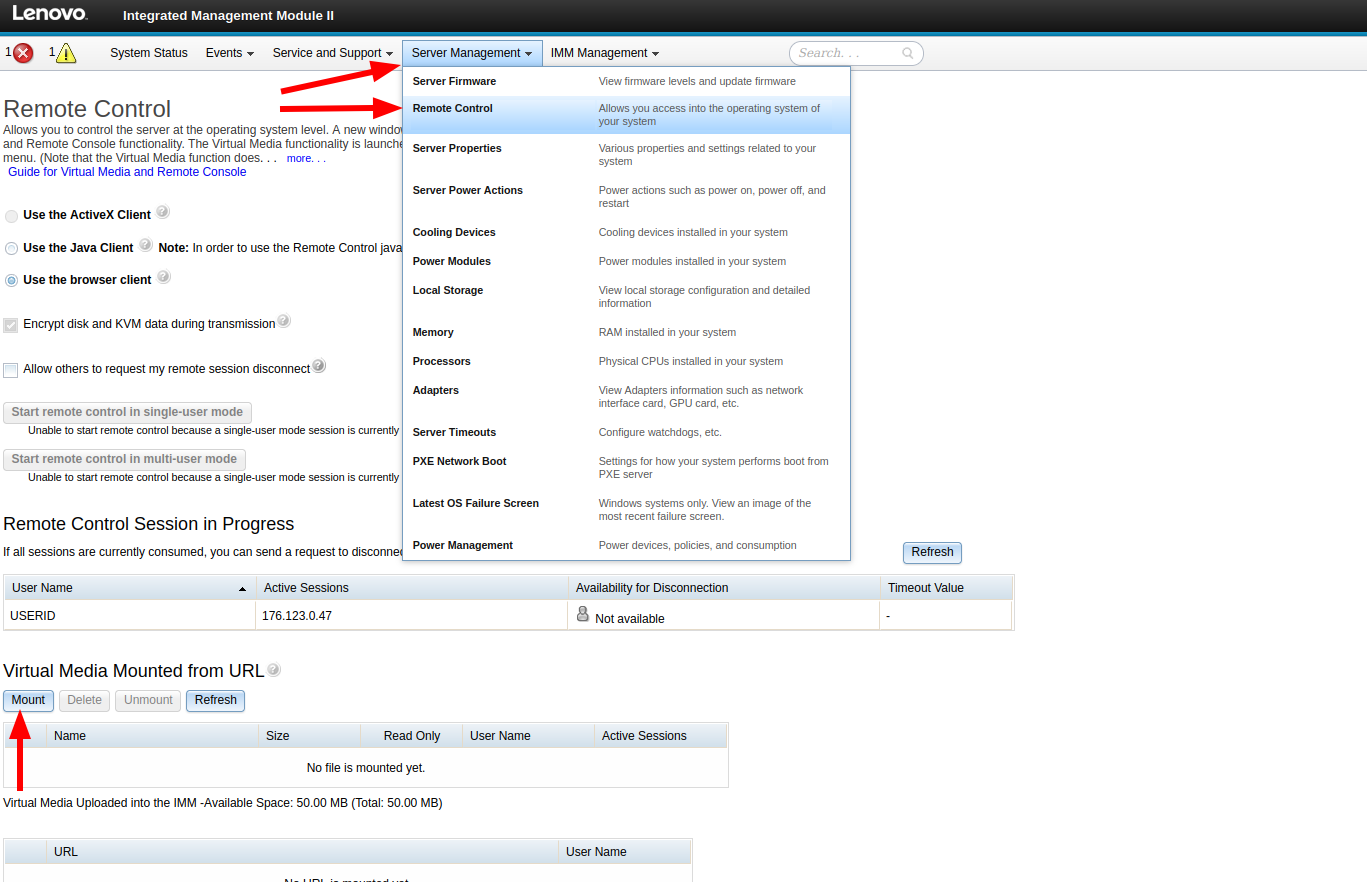
- Open Server Management.
- Go to Remote Control.
- Click Mount.
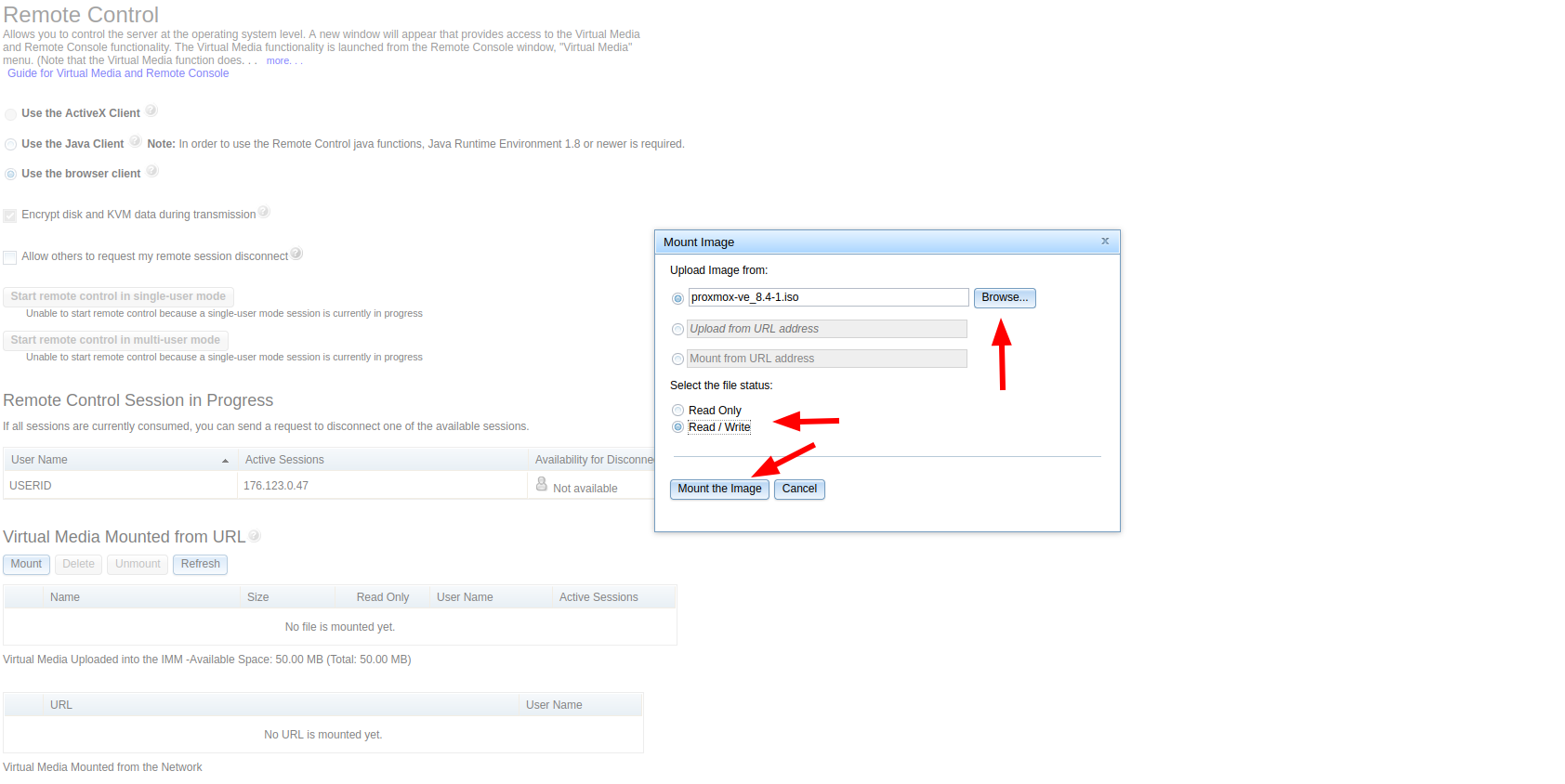
- In the mount window, click Browse and choose the ISO from your local PC.
- Select Read / Write.
- Click Mount the Image.
- Reboot the server.
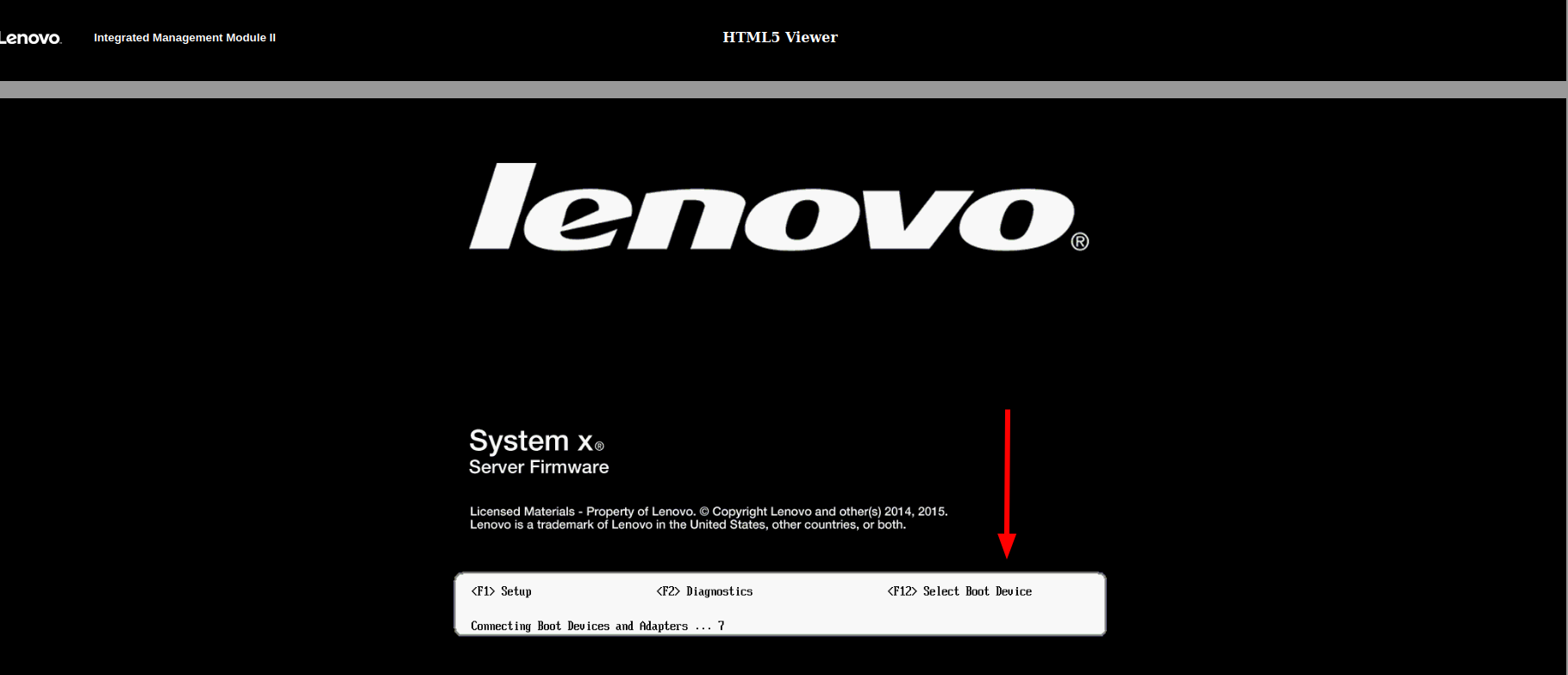
- During startup, press F12 for Select Boot Device.
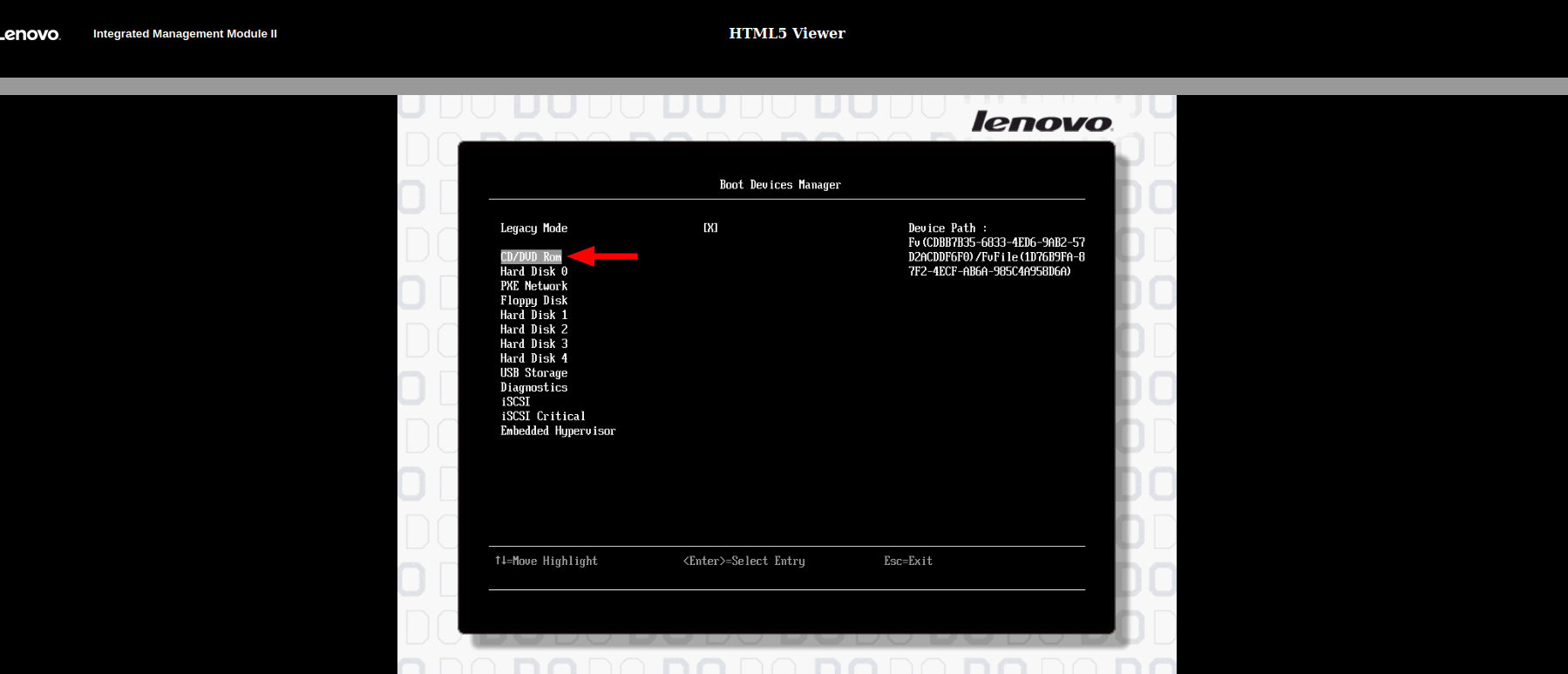
- Choose CD/DVD Rom.
- The server will boot from the mounted ISO. Complete the operating system installation as usual.
- After the installation finishes, unmount the image and reboot so the server starts from the installed disk.
Screenshot Reference
Open Server Management, go to Remote Control, then click Mount.
Click Browse, select the ISO from your local PC, choose Read / Write, then click Mount the Image.
Press F12 for Select Boot Device.
Select CD/DVD Rom.
Useful Notes
- If the ISO does not boot automatically after mounting, reboot again and press F12 at the Lenovo splash screen.
- If the server keeps returning to the installer after setup, unmount the image before the final reboot.