 Open Ticket
  +373 79 600002
  Telegram Live Chat
  F.A.Q
F.A.Q  English
 Русский
  Română
  Deutsch
  Français
  Türkçe
  Español
  Português
  Українська
  български
  Polski
  Indonesia
  中文 (中国)







































































































































 Administration
  Dedicated Servers
  Operating Systems
How to install OpenClaw on macOS
OpenClaw is an open-source, self-hosted AI agent framework (sometimes called Clawbot or Moltbot in earlier versions) that acts as a personal assistant. It runs 24/7, connects to messaging apps like Telegram/WhatsApp/Slack/iMessage, uses tools (web browsing, shell commands, file management), and integrates with powerful models like Claude or GPT.
A Mac Mini (especially Apple Silicon M-series models) is a popular choice for running it locally — quiet, energy-efficient, always-on hardware with excellent macOS integrations and in this guide you can get a step by step instruction on how to set up your own OpenClaw assistant on AlexHost’s Mac Mini.
WARNING!
OpenClaw runs with broad system permissions and can read files, execute commands, send messages, and browse the web on your behalf. Do not install it on your primary personal machine if you have sensitive data (iCloud, passwords, personal photos) synced to it. The Mac Mini setup described here is ideal precisely because it’s a dedicated, isolated device.
1st Step – Get a Server
You need to connect to your Mac Mini server following this guide.
2nd Step – Install Dependencies
- Install Homebrew
Open Terminal on your Mac Mini and run:/bin/bash -c "$(curl -fsSL https://raw.githubusercontent.com/Homebrew/install/HEAD/install.sh)"
Follow the prompts. After it finishes, if you’re on Apple Silicon (M1/M2/M3/M4), you may need to add Homebrew to your PATH:echo 'eval "$(/opt/homebrew/bin/brew shellenv)"' >> ~/.zprofileeval "$(/opt/homebrew/bin/brew shellenv)" - Install Node.js (v22 or newer required)
brew install node
Verify the installation:node --version
You should see v22.x.x or higher. If you see an older version, upgrade it:brew upgrade node
3rd Step – Install OpenClaw (Clawdbot)
- Run the Installer Script
curl -fsSL https://openclaw.ai/install.sh | bash
This script will detect your OS, ensure Node.js is available, install the OpenClaw CLI globally, and prepare the environment. Wait for the “Installation finished successfully!” message. - Verify the Installation
openclaw --version
You should see a version number printed. If the command isn’t found, close and reopen Terminal, then try again.
4th Step – Onboarding and Configuration
Here we will explain how to configure it based on the anthropic model:
- Run the Onboarding Wizard
openclaw onboard --install-daemon
The –install-daemon flag installs OpenClaw as a background service that auto-starts on boot. The wizard will walk you through:
a) Authentication — When prompted for your Anthropic API key, paste the one from console.anthropic.com. You’ll be billed per usage (typically a few dollars per day for active use).b) Gateway settings — Accept the defaults unless you have a specific reason to change ports. The default is port 18989
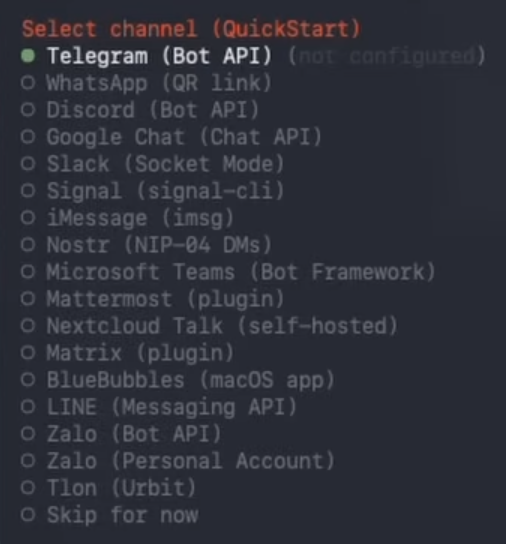
c) Channel setup — This is where you connect a messaging app (check step 5) or you can use the bot through the web UI (choose “skip for now”).
- Check the Gateway Status
openclaw gateway status
You should see that the gateway is running. If not, start it manually:openclaw gateway --port 18789 - Open the Control UI (Dashboard)
openclaw dashboard
This opens the web-based Control UI in your browser at http://127.0.0.1:18789/. If it loads, your gateway is working correctly and you can already chat with OpenClaw directly from the browser without any channel setup.
5th Step – Connect a Messaging Channel
- Open Telegram and search for @BotFather
- Send /newbot and follow the prompts to create a bot
- BotFather will give you an API token — copy it
- Back in your terminal, run: openclaw onboard
- Select Telegram and paste your bot token when prompted.
- Message your new bot in Telegram to start chatting.
And that is it. Now you have your own OpenClaw assistant that can do practially anything and help you in your everyday tasks.