Open Ticket
  +373 79 600002
  Telegram Live Chat
  F.A.Q
F.A.Q  English
 Русский
  Română
  Deutsch
  Français
  Türkçe
  Español
  Português
  Українська
  български
  Polski
  Indonesia
  中文 (中国)




































































































































 on All Hosting Services






Why SSH Users Still Use tmux: Sessions, Panes, and Surviving Disconnects
The Moment Plain SSH Stops Being Enough
You are SSH’d into a Linux VPS, maybe one you just provisioned at AlexHost. One shell is tailing logs. Another terminal tab has a config file open. An update is still running in the background of your mental checklist, even if not literally in the background of the shell. Then the café Wi‑Fi drops, the VPN renegotiates, or your laptop sleeps at the worst possible moment. The SSH session disappears. The server may still be perfectly fine, but your live terminal context is gone.

That is the moment plain SSH stops being enough. SSH is excellent at remote access. It gets you into the machine securely, quickly, and with very little overhead. What it does not give you by itself is a stable place to keep ongoing work once you are already inside. When the connection breaks, the fragile part is not necessarily the server. It is the active shell and the workspace wrapped around it.
This is why tmux still shows up everywhere people manage Linux over SSH. It solves the gap between “I can reach the server” and “I have a stable place to keep working once I’m there.” That is the real question behind the tool’s popularity, and it is the one this article answers. If SSH is only the door, what actually preserves the room you were working in?
What tmux Actually Is — in Plain English
In plain English, tmux is a persistent terminal workspace that lives on the server. You start a tmux session on the remote machine, do your work inside it, and that workspace keeps existing even if you intentionally leave it or your SSH client disappears. That is the first idea worth locking in: tmux is not a different login method. It is the thing that makes the remote terminal workspace more durable after login.

The formal label is terminal multiplexer. SSH users still rely on tmux because it makes remote work recoverable, reconnectable, and organized. Current tmux documentation still frames the value around three practical jobs.
- It protects remote work from connection drops.
- It lets you reconnect to the same session from another computer.
- It keeps multiple shells or terminal programs together in one place.
That mix is exactly why tmux keeps showing up in real workflows: you can start work on one machine, lose the connection, and later return to the same server-side workspace from somewhere else.
Think of tmux as what you open after SSH, not instead of it. SSH handles the secure login to the machine; tmux gives that login a reusable workspace on the server. With that in place, the next question is how sessions, windows, and panes fit inside it.
The Mental Model: Sessions, Windows, and Panes

Use one mental model and most tmux confusion disappears. SSH is the secure door into the machine.
- A tmux session is your workspace or office suite behind that door.
- Windows are the rooms, or if you prefer, the tabs inside that suite.
- Panes are split desks or split views inside one room.
That analogy works because it matches the real hierarchy: the door gets you in, the workspace holds the work, the rooms separate tasks, and the split desks let you see more than one thing at once.
The term map looks like this:
| Term | What it is | Beginner-friendly analogy | Why it matters |
|---|---|---|---|
| Session | The top-level tmux workspace you create and later reattach to | Office suite / main workspace | This is the main unit of persistence and the first thing beginners should care about |
| Window | A separate terminal context inside a session | Room / terminal tab | Keeps related tasks separated without scattering them across unrelated local tabs |
| Pane | A split view inside the current window | Split desk / split screen | Lets you watch or control two terminal views at once |
And the hierarchy itself is simple:
SSH door
└── tmux session (workspace)
    ├── window 1 (for example: logs)
    │   ├── pane A
    │   └── pane B
    └── window 2 (for example: editor or deploy shell)
The session is the top level, and for beginners it is the most important concept by far. A session is the named place where your remote work lives. It can hold the editor you opened, the logs you were following, and the extra shells you created. It also preserves the task layout you want to come back to later. If you understand sessions, you already understand most of tmux’s practical value. Many new users get useful results from sessions alone before they ever care much about panes.
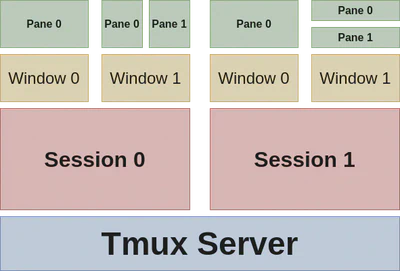
Inside a session, windows help you separate tasks cleanly. A tmux window is much closer to a terminal tab than to an operating-system window. You might keep one window for editing a config file, one for log output, and one for deployment work. Panes are the more detailed layer: they split the current window so you can see two command views at once, such as logs on the left and a shell on the right. Helpful, yes. Required on day one, no. Panes are subdivisions of the current window, not separate sessions or isolated workspaces of their own.
Why SSH Users Still Reach for tmux
Once that hierarchy is clear, the title’s answer stops sounding like insider culture and starts sounding practical: tmux still matters because the shape of remote work has not changed as much as people sometimes assume.
- Connections still drop.
- Long-running tasks still take time.
- Server administration still happens in shells more often than in polished dashboards.
- Plenty of Linux systems are still designed to be managed without a graphical desktop at all.

1) Persistence is the biggest reason. If you start an editor or follow logs inside tmux, that workspace can still be there even when your local connection is not. The same is true if you run a migration, watch a deployment, or leave a monitoring view open. That matters on unstable Wi‑Fi and while traveling. It also matters on a laptop battery you do not fully trust, or during the kind of small network blip that does not break the server but does break your concentration.
📝 Note:The real quality-of-life win is continuity: when you come back, the same output, context, and task layout are still there.
2) Organization is the second reason. Plain SSH plus a pile of terminal tabs works until it doesn’t. One tab has logs. Another has a config edit. Another has a half-finished command you are hesitant to close. Another belongs to a different server entirely. tmux gives those related tasks a shared structure: one named session, multiple windows for separate jobs, and panes only when side-by-side visibility is actually useful. Instead of tab chaos, you get one recoverable workspace with internal structure.
3) Portability is the third reason, and it matters more than it sounds. Because the workspace lives on the server, you can reattach from a different laptop. You can also pick it up again from home after leaving the office, or from a backup machine when your main one stops cooperating.
4) Low overhead is last reason. tmux is lightweight, widely available, and a natural fit for headless systems, meaning servers with no graphical desktop installed. In low-bandwidth conditions, that terminal-first model is often a strength rather than a limitation.

The benefit cuts across audiences.
- A developer may want an editor, logs, and deploy output in one remote workspace.
- A self-hoster may want updates, service status, and monitoring kept together so a reconnect does not mean starting from scratch.
- A business operator checking a production VPS while traveling may simply want the confidence that the work will still be there after a network interruption.
That is why tmux still feels current. But to trust it properly, you need to understand exactly what “surviving disconnects” means.
What “Surviving Disconnects” Really Means
The cleanest way to picture tmux is this: SSH creates the connection to the server, and tmux lives behind that connection on the server itself. Inside tmux live the session, windows, panes, and the programs you started there. If the connection disappears, the tmux session can still be sitting there waiting for you.
local terminal
    -> SSH connection
        -> server
            -> tmux session
                -> windows / panes
                    -> running processes
The practical rule follows directly from that path: if you want tmux to preserve the workspace, start the work inside tmux. Launch the editor there. Start the log tail there. Run the long update there. If you begin a task in a normal SSH shell outside tmux and only think about tmux later, tmux cannot retroactively turn that earlier shell into a persistent session. The workspace has to exist inside tmux before the disconnect happens.

Detaching is the intentional version of leaving. You tell tmux to keep the session running and return you to a normal shell. An accidental disconnect is the unplanned version: Wi‑Fi drops, the laptop sleeps, the VPN flips, or the SSH client crashes. In both cases, the session itself can still exist on the server. That is why reattaching works after intentional detaching or accidental disconnection: you are returning to the same server-side session, not rebuilding the terminal context from scratch.
⚠️ Warning: tmux does not keep the SSH connection alive, and default tmux sessions do not survive a server reboot. If the server itself restarts, the session is gone unless you add separate restore tooling.
That reboot boundary matters because it keeps the promise honest. tmux is excellent at preserving work across connection loss. It is not magic disaster recovery. There are optional tools, such as tmux-resurrect, that help restore session layouts after a restart, but that is a separate topic and not part of core tmux behavior. Once that limit is clear, the beginner command set feels much less mysterious.
The Smallest Useful tmux Starter Kit

The good news is that you do not need a huge cheat sheet to get value from tmux. If you are already SSH’d into a server and tmux is installed, a beginner only needs a tiny starter kit. Installation is intentionally out of scope here because package-manager steps vary by distro. The only new control idea to remember is the prefix key: by default, tmux listens for the next command after you press Ctrl-b.
Start with the core session lifecycle commands:
tmux new -s work
tmux ls
tmux attach -t work
tmux new -s work creates and enters a named session called work. tmux ls shows the sessions currently available on the server. tmux attach -t work brings you back into that same named session later, whether you detached on purpose or need to resume work after reconnecting.
Once you are inside tmux, these key sequences cover most beginner needs:
Ctrl-b d    detach from the current session without ending it
Ctrl-b c    create a new window inside the session
Ctrl-b %    split the current pane left/right
Ctrl-b "    split the current pane top/bottom
Ctrl-b d is the one to remember first because it lets you leave safely and come back later. Ctrl-b c gives you a fresh window for another task, such as logs in one place and editing in another. Ctrl-b % and Ctrl-b " are the smallest useful pane controls for side-by-side or stacked views. That is enough to get practical value without memorizing a long list of bindings.
💡 Tip: Name sessions after the project, host role, or task — billing-api, nginx-prod, or backup-check is far more useful than a disposable name like test.
A minimal real-life flow looks like this:
- SSH in and run tmux new -s work.
- Open logs in one window or pane.
- Do the config edit in another.
- When you need to leave, detach with Ctrl-b d. Later, reconnect over SSH and run tmux attach -t work. You are back at the same working desk instead of rebuilding context from memory.
Even if that is all you do on day one, you have already made remote administration noticeably more reliable. That is the moment tmux stops feeling like a weird old terminal tool and starts feeling like the missing half of reliable SSH work.
When tmux Is the Right Tool — and When It’s Overkill
tmux is the right tool when remote work is both persistent and interactive. If you are watching a deployment, following logs, or editing configs, tmux pays for itself quickly. The same is true when you are checking service state, running a long job you want to revisit, or working on an unreliable connection.
These are the situations where losing context is more expensive than starting one named session at the beginning. It is especially useful in the middle ground where the task is too substantial for a throwaway terminal tab but not large enough to justify a bigger management layer.
It is overkill when the task is small and disposable. If you need one quick command, one short config edit, or a simple dashboard action, opening tmux first may add more ceremony than value. A plain terminal tab is perfectly fine for short work. Good tools become bad habits when people act as if they must be used for everything.
The boundary gets clearer if you compare plain SSH tabs, nohup — a way to keep a single command running after logout — and tmux side by side:
| Option | Persistence | Organization | Interactive recovery |
|---|---|---|---|
| Plain SSH tab | Low — tied to the current shell and connection | Low — each task is a separate local tab or shell | Low — reconnecting usually means starting a fresh shell |
| nohup | Medium — good for one launched command | Very low — no real workspace structure | Low — the command may keep running, but you do not return to the same interactive desk |
| tmux | High — the server-side session stays available across disconnects | High — windows and panes stay grouped inside one session | High — you can reattach to the same workspace and continue interactively |
📝 Note: nohup can keep one command alive, but it does not replace a reusable interactive workspace. It is good for “run this and leave,” not for “leave and come back to the same working setup.”
That difference is why tmux becomes more valuable after the server is provisioned and normal operations begin. On an AlexHost VPS, the dashboard gets you the machine. tmux starts mattering once the real work begins. A simple test works here: if you expect to come back to the same shell context, use tmux. If the shell is disposable, plain SSH or nohup is usually enough.
SSH Gets You In; tmux Keeps the Workspace Alive

The durable rule is the same one we started with: SSH is the connection; tmux is the workspace. SSH gets you into the server. tmux makes that work resumable when you disconnect, detach, or switch machines. You do not need advanced pane choreography or a custom .tmux.conf to benefit from that. One named session already changes how reliable remote work feels.
The next time you SSH into a server, start a named tmux session before you do real work. That single habit is enough to make terminal administration calmer and more recoverable. It changes the feel of remote work almost immediately. After that, you can learn shortcuts, build a first tmux workflow, or customize the tool later. The important part comes first: open the door with SSH, then give yourself a room that stays there.