Açık Bilet
  +373 79 600002
  Telegram Canlı Sohbet
  S.S.S
S.S.S  Türkçe
 English
  Русский
  Română
  Deutsch
  Français
  Español
  Português
  Українська
  български
  Polski
  Indonesia
  中文 (中国)





































































































































 tasarruf edin






Ollama’yı bir LLM Sunucusunda Kendi Barındırın ve AI Sansürü Üzerinde Kontrol Sahibi Olun
Anahtar Kelimeler
Kuruluma başlamadan önce, bu kılavuzda okuyucuları en çok kafa karıştıracak terimler aşağıda verilmiştir. Bu hızlı sözlük, Linux, GPU ve yerel model kelime dağarcığını baştan itibaren net tutmaya yardımcı olur.
| Anahtar Kelime | Kısa Açıklama |
|---|---|
| 🤖 LLM | Large Language Model; istemlerden metin üreten bir yapay zeka modeli. |
| 🦙 Ollama | Kendi makinenizde LLM’leri indirmek, sunmak ve çağırmak için yerel bir model çalıştırıcısı ve sunucusu. |
| 🖥️ GPU | Model çıkarımını hızlandırmak için kullanılan grafik işlemcisi. |
| 💾 VRAM | GPU üzerindeki bellek; bir modelin bir karta sığabileceği boyutun ana sınırlarından biridir. |
| ⚡ Inference | Bir cevap oluşturmak için bir modeli çalıştırma işlemi. |
| 🔄 systemd | Ollama gibi hizmetleri başlatmak, durdurmak, yeniden başlatmak ve etkinleştirmek için kullanılan Linux hizmet yöneticisi. |
| 🧩 NVIDIA driver | Ubuntu’nun işlem iş yükleri için NVIDIA GPU ile doğru şekilde iletişim kurmasını sağlayan yazılım katmanı. |
| 🚫 nouveau | Resmi NVIDIA sürücüsü yerine kullanılırsa uygun NVIDIA işlem kurulumunu engelleyebilen açık kaynaklı bir Linux grafik sürücüsü. |
| 📊 nvidia-smi | GPU görünürlüğünü, VRAM kullanımını ve sürücü durumunu kontrol etmek için NVIDIA’nın komut satırı aracı. |
| 🔌 API endpoint | Araçların veya betiklerin Ollama’ya istekler göndermek ve yanıtlar almak için çağırdığı bir URL. |
| ☁️ Vendor-controlled serving layer | Bir modelin yanıt vermesinden önce moderasyon, günlüğe kaydetme, politika uygulaması veya diğer kontroller ekleyebilen sağlayıcı tarafından yönetilen API katmanı. |
| 🧬 Fine-tune | Farklı ton, davranış veya özel amaçlı görevler için ayarlanmış bir temel modelin değiştirilmiş versiyonu. |
| ⚖️ Model weights | Modelin öğrenilmiş iç parametreleri; kendi kendine barındırma bunları otomatik olarak değiştirmez. |
| 📝 Modelfile | Kendi sistem istemleriniz ve çalışma zamanı parametreleriyle özel bir yerel model varyantı oluşturmak için kullanılan bir Ollama dosyası. |
| 🪪 UUID | Bir GPU için kararlı bir donanım tanımlayıcısı; cihaz sırası değişebileceğinden sayısal GPU kimliklerinden genellikle daha güvenlidir. |
| 🔒 TLS | HTTPS ve ters proxy’ler tarafından istemciler ile sunucu arasındaki trafiği güvenli hale getirmek için kullanılan şifreleme. |
| 🌐 Reverse proxy | İstekleri Ollama’ya iletmeden önce TLS, kimlik doğrulama ve kontrollü genel erişim ekleyebilen bir ön uç hizmeti. |
| 🎛️ Temperature / seed | Oluşturma ayarları; sıcaklık rastgeleliği etkilerken, sabit bir seed tekrarlanan testleri daha karşılaştırılabilir hale getirir. |
| 🧱 CPU spill / mixed path | Modelin bir kısmı veya iş yükünün GPU belleğinin dışında kalması ve CPU kaynaklarını kullanması durumu; bu çıkarımı yavaşlatabilir. |
| 🔧 nvidia_uvm | GPU bellek yönetimi ile ilgili bir NVIDIA çekirdek modülü; sorun giderme sırasında bazen yeniden yüklenmesi gerekir. |
Kendi Sunucunuzda LLM Barındırmak Neden Değer?

Zor kısmı zaten yaptıysanız — GPU sunucusu kiraladınız, Ubuntu yüklediniz, SSH’yi öğrendiniz ve kendi hizmetlerinizi çalışır durumda tuttunuz — barındırılan bir yapay zeka hala son adımı kontrol ettiğinde hızla sinir bozucu hale gelir. Tamamen normal bir isteği reddedebilir, cevabı sorumluluk reddi beyanlarının altına gömebilir, yanıt stilini uyarı vermeden değiştirebilir ve her istemi başka birinin sınırından geçirebilir. Birçok teknik kullanıcı için gerçek hayal kırıklığı budur: sadece modelin ne söylediği değil, söylediğinde hizmet sunma katmanını kimin kontrol ettiği.
Bu rehber bunu açık ve yerel modellerle düzeltmekle ilgilidir, tescilli API’ler için bypass hileleri hakkında değildir. Ollama’yı bir Ubuntu GPU sunucusunda kendi sunucunuzda barındıracak, yerel olarak çıkarım çalıştıracak, GPU yolunun gerçek olduğunu doğrulayacak ve farklı bir model ailesini seçtiğinizde neler değiştiğini göreceksiniz. Erken aşamada açıklığa kavuşturulacak bir yanlış kanı: kendi sunucunuzda barındırmak otomatik olarak sınırsız anlamına gelmez. Yığının çok daha fazlasını kontrol ettiğiniz anlamına gelir — ve satıcı tarafından kontrol edilen bir hizmet yoluna bağlı olmaktan vazgeçersiniz — ancak çalıştırdığınız model yine de kendi hizalama davranışını taşıyabilir.
📝 Not: Bu rehberdeki komutlar mevcut Ollama belgelerine karşı doğrulanmıştır, ancak aşağıda gösterilen terminal çıktıları canlı kıyaslama yakalamaları yerine temsili örneklerdir. Bunları bir başarı deseni olarak kullanın, bir performans iddiası olarak değil.
Sonunda, Ubuntu’da çalışan bir Ollama hizmetine, 127.0.0.1:11434 adresinde doğrulanmış yerel bir API’ye, GPU destekli çıkarımın gerçekten gerçekleştiğinin kanıtına ve ana akım hizalanmış bir model ile daha az kısıtlı bir alternatif arasında temellendirilmiş bir karşılaştırmaya sahip olacaksınız. Bu öğretici SSH, Ubuntu, sudo ve systemd ile rahat olan ancak önceki Ollama deneyimine ihtiyaç duymayan okuyucular için yazılmıştır.
Bu Kılavuz İçin Kullanılan Tam Ubuntu GPU Sunucusu
Bu izlenecek yol, gerçek bir tek-GPU Ubuntu makinesine dayandırılmıştır, çünkü belirsiz “çoğu sunucuda çalışmalı” tavsiyesi, kendi kendine barındırma kılavuzlarının yanıltıcı hale gelmesinin yoludur. Buradaki referans kutu, bu kılavuz için kullanılan ana bilgisayarın gerçek sınıfıdır: ileri düzey bir kişi, laboratuvar veya küçük bir ekip, kurumsal hızlandırıcı raflarına doğru atlamadan özel yerel çıkarım istediğinde gerçekten kiralayacağı makine türüdür. Daha sonra çok-GPU davranışını tartışacaktır, çünkü bir model bir kartı aştığında Ollama değişir, ancak bu kısmı bu tam sunucudan kanıt yerine gelecek odaklı bağlam olarak değerlendirin.
GPU Sunucusu — Ryzen 9 3950X + RTX 4070 Ti Super
| Bileşen | Detaylar |
|---|---|
| CPU | AMD Ryzen 9 3950X (16 çekirdek / 32 iş parçacığı) |
| GPU | 1× NVIDIA RTX 4070 Ti Super |
| VRAM | 16GB |
| Yetenek | 8B sınıfı modeller için güçlü; daha büyük modeller taşma veya yükseltme kararları haline gelir |
Uygulamada, bu günlük 8B sınıfı modeller için çok güçlü bir kurulum ve daha büyük yerel çalışma için 16GB VRAM gerçek kısıtlama haline gelene kadar hala yararlı bir kurulumu. llama3.1:8b gibi bir model, kabaca 4.9GB ile bu karta kolayca sığar. gpt-oss:20b gibi bir model, kabaca 14GB ile, bu makinede hala mantıklı olan tek-GPU testinin üst uç türüdür. qwen3:30b gibi bir model, kabaca 19GB ile, daha büyük veya çift-GPU ana bilgisayarda neyin değiştiğinin bir referans noktası olarak değerlendirilir, bu tam makine için temiz bir uyum olarak değil.
Bu ayrım önemlidir çünkü bu makalenin amacı, başlığa mümkün olan en büyük sayıyı sıkıştırmak değildir. Gizlilik, yerel kontrol ve sabit uzlaşma olmadan yararlı modelleri çalıştırmak için yeterli GPU belleğine sahip olduğunuzda, makul bir kendi kendine barındırılan LLM sunucusunun neye benzediğini göstermektir. Bu donanım sınıfı, kendi kendine barındırılan çıkarımın teorik değil, gerçekçi hale geldiği yerdir.
Ayrıca daha sonra göreceğiniz birkaç seçimi açıklar: mistral ilk olarak kullanılır çünkü yığının çalıştığının hızlı, düşük sürtünmeli kanıtını verir, davranış karşılaştırması bu makinenin rahat olduğu 8B sınıfında kalır. qwen3:30b hala daha sonra görünür, ancak bu sunucudan canlı kanıt olarak değil, daha büyük bir ana bilgisayarda çok-GPU yerleşimini tetikleyebilecek model türünün teorik bir örneği olarak. Beklentiler belirlendikten sonra, bir sonraki adım Ollama ona dokunmadan önce ana bilgisayarı doğrulamaktır.
Ollama’ya Dokunmadan Önce Bu Ön Kurulum Kontrollerini Çalıştırın
nvidia-smi ile başlayın. Bu komut eksikse veya başarısız olursa, orada durun ve önce NVIDIA sürücüsünü düzeltin. Ollama’yı henüz kurmayin, çünkü bozuk bir NVIDIA yığını daha sonraki her semptomun uygulama hatası gibi görünmesine neden olacaktır, oysa bu gerçekten bir platform hatasıdır.
GPU kontrolünü önce çalıştırın:
nvidia-smi
❗ Ubuntu nvidia-smi‘nin eksik olduğunu söylüyorsa, sunucunun GPU’su olmadığını varsaymayın. Kiralanan Ubuntu kutularında yaygın bir hata modu, kartın mevcut olmasıdır ancak yine de NVIDIA sürücüsü yerine nouveau‘ya bağlı olmasıdır. Önce “Ubuntu’da Nvidia Sürücü Sorununu Düzelt” bölümünü kontrol edin.
Bu sunucu sınıfında sağlıklı bir sonuç kabaca şöyle görünmelidir:
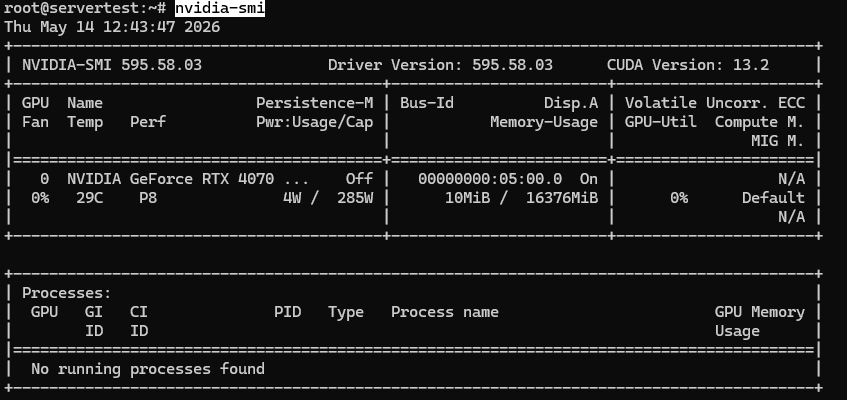
nvidia-smi çalışır ve GPU görünür olduğunda, aşağıdaki kontrollerle devam edin.
Doğrulamak istediğiniz şey basittir: yüklü GPU görünür, bu ana bilgisayarda kabaca 16GB VRAM rapor eder ve sürücü temiz şekilde yüklenir. Çok GPU’lu bir sunucudaysanız, aynı komut her kartı listelemeli.
nvidia-smi -L

❗ Önemli: Mevcut Ollama GPU destek belgeleri, desteklenen NVIDIA çıkarımı için gerçek taban olarak NVIDIA sürücü 531+ kullanır. Daha eski topluluk notlarında daha düşük sürümler alıntılanmış olsa bile, bu kılavuz için 531+‘yi gereksinim olarak değerlendirin.
Şimdi ana bilgisayarın bu kılavuzun varsaydığı Ubuntu ortamı olduğunu doğrulayın:
lsb_release -a
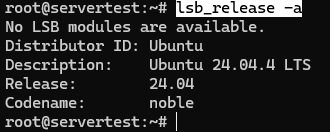
Son olarak, modelleri indirmeye başlamadan önce boş disk alanını kontrol edin. Kurulum kendisi küçüktür; modeller değildir. Küçük testlerin ötesine geçtikten sonra, 20B-30B kütüphanesi hızla onlarca gigabayt tüketebilir, bu nedenle ciddi yerel model çalışmasından önce 100GB+ boş alan doğru zihniyettir.
df -h /

Bu kontroller geçerse, ana altyapı bilinmeyenlerini temizlediniz: GPU’lar mevcut, sürücü temeli sağlam, Ubuntu doğrulandı ve disk gerçek model çekmeleri için yer var. Bu, Ollama’yı kurmayı bir tahmin yerine temiz bir sonraki adım haline getiren noktadır.
Ubuntu’da Nvidia Sürücü Sorununu Düzelt
“nvidia-smi” komutuyla ilgili sorunları düzeltmek için aşağıdaki adımları izleyin.
lspci -nnk | grep -A3 -Ei 'VGA|3D|NVIDIA'
Bu çıktı bir NVIDIA kartı ve Kernel driver in use: nouveau gibi bir satır gösteriyorsa, nvidia-utils tek başına kurmak yerine önerilen Ubuntu sürücü paketini kurun.
ubuntu-drivers-common paketini (sürücü yönetimi için gerekli) ve şu anda çalışan çekirdeğiniz için çekirdek başlıklarını kurun.
apt update
apt install -y ubuntu-drivers-common linux-headers-$(uname -r)
Sisteminizi tarayın ve kurulabilecek mevcut tescilli sürücüleri (örn. NVIDIA GPU sürücüleri) listeleyin.
ubuntu-drivers devices
Ardından önerilen sürücü paketini kurun. Bizim durumumuzda şu idi: nvidia-driver-595-open:
apt install -y nvidia-driver-595-open
reboot
Yeniden başlatmadan sonra, yeniden çalıştırın:
nvidia-smi
nvidia-smi -L
Ollama’yı Yükleyin ve Hizmetin Sağlıklı Olduğunu Doğrulayın
Desteklenen Ubuntu yolu resmi Ollama yükleyicisidir, özel tarball akışı değil ve Docker deturu da değil. Bu önemlidir çünkü bu kılavuz, Linux’ta güvenilir bir yerel hizmet, öngörülebilir varsayılanlar, systemd entegrasyonu ve makul sahiplik davranışı elde etmekle ilgilidir.
Yükleyiciyi tam olarak belgelenen şekilde çalıştırın:
curl -fsSL https://ollama.com/install.sh | sh
Sağlıklı bir sistemde, komut dosyası ikili dosyayı yükler, ollama hizmet kullanıcısını oluşturur, mevcut olduğunda doğru grup üyeliklerini ekler, systemd birimini yazar ve hizmeti 127.0.0.1:11434‘e bağlı olarak başlatır.
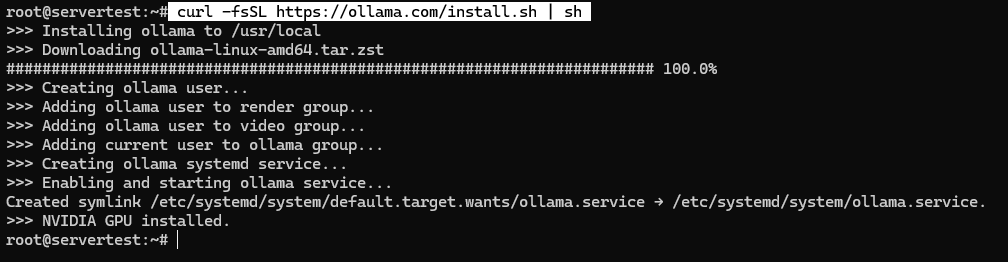
Komut dosyası bittikten sonra, başarıyı varsaymak yerine hizmeti doğrulayın:
sudo systemctl status ollama --no-pager
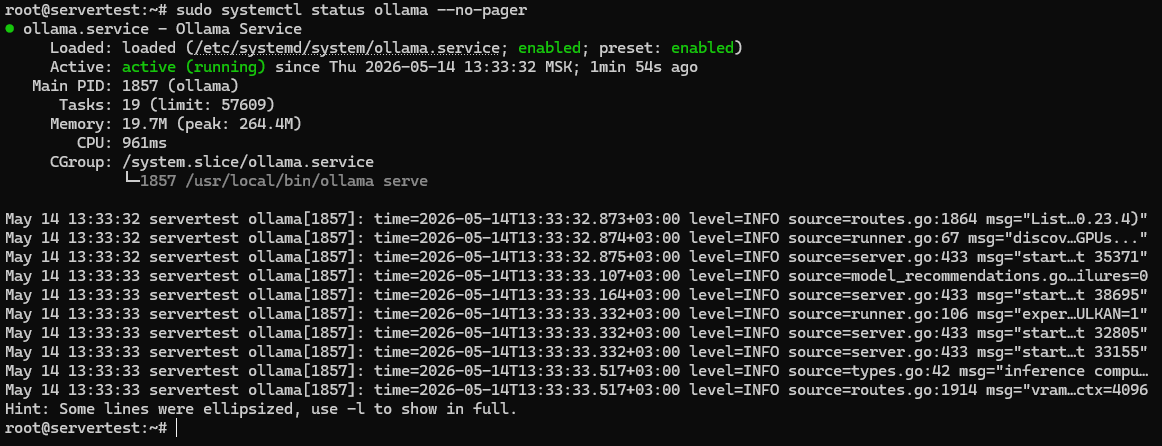
Burada üç şey arıyorsunuz: birim dosyası mevcut, hizmet önyükleme için etkinleştirilmiş ve Active: active (running) sunucunun gerçekten çalışır durumda olduğunu doğrular.
İlk olarak, Linux hizmet kullanıcı hesabını somut bir şekilde oluşturun ve yalnızca daha sonra modelin depolanmasının nasıl ve nerede işleneceğini düşünün.
getent passwd ollama

Bu tek satır, gelecekteki davranışın çoğunu açıklar. Linux’taki modeller hizmetin sahipliği altında yaşar ve daha sonra bunları başka bir diske taşırsanız ollama kullanıcısı için izinleri düzeltmeden, kendi arızanızı oluşturursunuz.
Bir kontrol daha varsayılan bağlamada döngüyü kapatır:
ss -tlnp | grep 11434

⚠️ Uyarı: Ollama, varsayılan olarak yerel API’de kimlik doğrulaması gerektirmez. 127.0.0.1‘e bağlı olduğunda bu sorun değildir, ancak 11434 portunu doğrudan internete sertleştirilmiş bir genel hizmet gibi açığa çıkarmak güvenli değildir.
Hizmet düzgün bir şekilde başlamazsa, kör bir şekilde yeniden yüklemek yerine önce günlüklere gidin:
journalctl -u ollama -n 100 --no-pager
Bu, izin sorunlarını, başlatma hatalarını, sürücü algılama sorunlarını veya bağlama sorunlarını yakalamak için en hızlı yoldur. Hizmet localhost’ta sağlıklı olduğunda, sonraki şey anlaşılması gereken GPU yerleşiminin çalışma zamanında nasıl davrandığıdır.
Ollama Aslında Bir veya Birden Fazla GPU’yu Nasıl Kullanır
Bu kılavuz için kullanılan sunucunun bir GPU’su olmasına rağmen, çok GPU davranışını anlamak yine de değerlidir çünkü birçok kullanıcı daha büyük sunuculara sahip olabilir veya daha sonra genişletebilir. Çoğu iki GPU karışıklığı yanlış bir beklentiyle başlar: “İki kartım var, bu yüzden her ikisi de her zaman açık olmalı.” Ollama böyle çalışmaz. Pratik kural çok daha basittir: bir model bir GPU’ya sığıyorsa, Ollama genellikle onu bir GPU’da tutacaktır. Yalnızca model tek bir karta rahatça sığmadığında birden fazla GPU’ya yayılır.
GPU performansını görmek istediğinizde bu iki kontrolü birlikte kullanın:
ollama ps
watch -n 1 nvidia-smi
ollama ps yüklenen modelin nasıl işlendiğini gösterir. %100 GPU modelin GPU belleğinde tamamen yerleşik olduğu anlamına gelir. %100 CPU GPU hızlandırmasının kullanılmadığı anlamına gelir. Karışık bir durum, iş yükünün veya yerleşiminin bir kısmının GPU yolunun dışına taştığını gösterir. watch -n 1 nvidia-smi model yüklüyken her kart başına canlı VRAM kullanımını göstererek bunu tamamlar.
Bu rolleri doğru tutmanın en hızlı yolu şudur:
| Komut | Neyi kanıtlar | Neyi kanıtlamaz |
|---|---|---|
| ollama ps | Modelin GPU, CPU veya karışık bir yolda çalışıp çalışmadığı | Tam olarak hangi kart veya kartların yükü taşıdığı |
| watch -n 1 nvidia-smi | GPU başına gerçek zamanlı VRAM aktivitesi | Çift GPU kullanımının otomatik olarak daha iyi bir model seçimi anlamına gelip gelmediği |
📝 Not: CUDA_VISIBLE_DEVICES bir görünürlük kontrolüdür, “her iki GPU’yu kullan” anahtarı değildir. GPU erişimini kısıtlarsanız, GPU sıralaması ortamlar ve yeniden başlatmalar arasında değişebildiğinden, sayısal kimlikler yerine nvidia-smi -L‘den UUID’leri tercih edin.
İlk Yerel Modelinizi Çalıştırın ve GPU Çıkarımını Doğrulayın
Bu noktada, sunucunun çalıştığını kanıtlamak için dev bir modele ihtiyacınız yok. Hızlı, dürüst bir başarıya ihtiyacınız var. mistral iyi bir ilk seçimdir çünkü küçük, hızlı indirilir ve yüklemesi kolaydır, ancak llama3.1:8b daha sonra davranış karşılaştırması için temel olacaktır.
Modeli çekerek başlayın:
ollama pull mistral
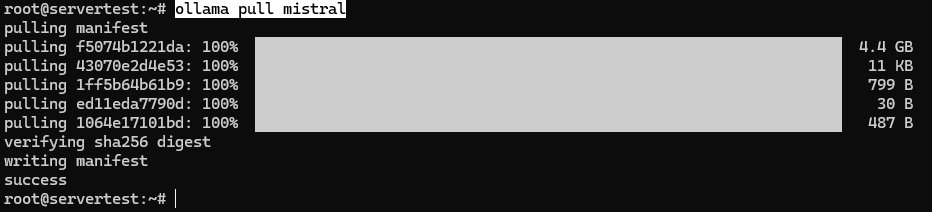
Şimdi makineyi yararlı bir şey yapması için küçük bir istem çalıştırın, sadece yönetim değil. Yanıt birkaç saniye sürebilir.
ollama run mistral "In one sentence, explain why people self-host LLMs."

Bunun CPU geri dönüşü yerine GPU destekli çıkarım olduğunu kanıtlamak için çalışma zamanı durumunu kontrol edin:
ollama ps

Diskte zaten neler olduğunu görmek için yerel envanteri listeleyin:
ollama list

mistral doğru ilk kanıt olduğundan, kurulum doğrulamasını uzun bir beklemeye dönüştürmeden hızlı bir yanıt verir. Daha sonra, llama3.1:8b model davranışını karşılaştırmak için daha güçlü hizalanmış bir temel olduğundan daha yararlı hale gelir.
Son olarak, Linux yüklemesinin modelleri nerede depoladığını kontrol edin:
sudo du -sh /usr/share/ollama/.ollama/models

Bu yol — /usr/share/ollama/.ollama/models — Ollama tarafından belgelenen standart Linux model deposudur.
Başarılı bir yanıt, ollama ps‘de %100 GPU ve beklenen konumda disk kullanımının arttığını gördüğünüzde, yerel yığının çalıştığının ilk anlamlı kanıtına sahipsiniz.
Bunun Bir Server Olduğunu Kanıtlayın, Sadece CLI Wrapper Değil
Komut satırı istemi güzeldir, ancak Ollama’yı kendi kendine barındırmanın nedeni yalnızca terminal içinde sohbet etmek değildir. Diğer araçların, betiklerin ve uygulamaların başka birinin API sınırından geçmeden çağırabileceği yerel bir çıkarım sunucusu çalıştırmaktır. En hızlı kanıt, yerel Ollama uç noktasına yapılan tek bir temiz HTTP isteğidir.
Akışı devre dışı bırakarak yerel bir generate isteği gönderin, böylece ilk yanıt incelemesi kolay olur:
curl http://localhost:11434/api/generate -d '{
"model": "mistral",
"prompt": "Say hello from a self-hosted Ollama server in one sentence.",
"stream": false
}'
Başarılı bir yanıt JSON olarak geri dönmeli ve kabaca şöyle görünmelidir:
{
  "model": "mistral",
  "created_at": "2026-05-13T12:45:12.000000Z",
  "response": "Hello from a self-hosted Ollama server running locally on Ubuntu.",
  "done": true,
  "done_reason": "stop",
  "total_duration": 812345678,
  "load_duration": 12345678,
  "prompt_eval_count": 14,
  "eval_count": 12
}
Başarı kontrol listesi basittir: HTTP isteği yerel olarak çalışır, geçerli JSON geri döner, done: true mevcuttur ve modelin yanıtı response içindedir. Bu, Ollama’nın “tesadüfen modelleri indiren bir CLI” olmaktan çıkıp yerel araçlar ve otomasyonlara gerçekten entegre edebileceğiniz altyapı haline geldiği noktadır.
OpenAI tarzı istek şekli bekleyen yazılımla uyumluluk istiyorsanız, Ollama ayrıca yerel olarak /v1 uç noktalarını da ortaya koymaktadır:
curl -X POST http://localhost:11434/v1/chat/completions
-H "Content-Type: application/json"
-d '{
"model": "mistral",
"messages": [
{"role": "user", "content": "Say this is a test."}
]
}'
📝 Not: Bu “OpenAI uyumlu” etiketi yanlış okunması kolaydır. Bu, OpenAI ile konuştuğunuz anlamına gelmez ve sunucunun hala yerel olduğu gerçeğini değiştirmez. Bu yalnızca istek şeklinin OpenAI API deseni etrafında oluşturulmuş araçlar ve SDK’lar için yeterince tanıdık olduğu anlamına gelir. Temel URL http://localhost:11434/v1/ kalır ve bazı istemci kitaplıklarının ısrar ettiği herhangi bir yer tutucu API anahtarı yerel Ollama kullanımı için göz ardı edilebilir.
Model Kısıtlamaları Gerçekten Nereden Geliyor

Bu, genellikle “sansür” fikrine basitleştirilen kısım, ancak teknik olarak üç farklı katman söz konusudur: satıcının sunma katmanı, modelin hizalama ve talimat ayarlaması ve siz tarafından kontrol edilen istem/çalışma zamanı davranışı. Kendi kendine barındırma bu katmanlardan bazılarını dramatik şekilde değiştirir. Hepsini silmez.
Bunu görselleştirmenin basit bir yolu şudur:
Cloud API request:
You -> Vendor API gateway -> Vendor moderation / policy layer -> Model -> Response

Self-hosted Ollama request:
You -> Local Ollama server on 127.0.0.1 -> Model -> Response
Sonuçlar:
– Satıcı tarafından kontrol edilen sunma katmanı yerel yoldan kaybolur
– Yerel ağ ve günlüğe kaydetme sınırı sizin olur
– Modelin kendi eğitimi ve hizalaması modelle birlikte gelir
Katmanları ayırdığınızda, önceki kurulum adımları çok daha anlamlı hale gelir:
| Katman | Bu kurulumdan sonra yerel olarak kontrol ediliyor mu? | Kanıt noktası | Hala doğru kalan şey |
|---|---|---|---|
| Sunucu işlemi | Evet | ollama.service Ubuntu üzerinde çalışıyor | Artık çalışma süresi, günlükler, güncellemeler ve bağlama adresini kontrol edersiniz |
| Ağ sınırı | Evet | 127.0.0.1:11434 bağlama kontrolü | Yerel istekler artık satıcı moderasyon atlaması gerektirmez |
| Sistem istemi / çalışma zamanı varsayılanları | Evet | Kontrollü sistem mesajı için Modelfile | Davranışı yönlendirebilirsiniz, ancak eğitimi yeniden yazamazsınız |
| Satıcı tarafı moderasyon katmanı | Genellikle yerel çıkarım için kaldırılır | Yerel API çağrısı localhost üzerinde başarılı olur | Bu, kendi kendine barındırmanın size verdiği en büyük kontrol kaymaları arasında biridir |
| Ağırlıklardaki model hizalaması | Hayır, otomatik olarak değil | Farklı model ayarlaması, farklı sonuçlar verir | Yerel bir model yine de temkinli davranabilir, reddedebilir veya ahlaki uyarıda bulunabilir |
| Model ailesi seçimi | Evet | llama3.1:8b vs dolphin3 | İhtiyaçlarınıza en uygun olanı seçin |
Bunu bir sahne üretimi gibi düşünebilirsiniz. Kendi kendine barındırma sahneyi, aydınlatmayı, mikrofonu ve yönetmenin notlarını değiştirir. Oyuncuyu yeniden eğitmez. Bir model dikkatli cevap vermeye, sık sık temkinli davranmaya veya belirli çerçeveleme türlerini reddetmeye ayarlandıysa, bunu yerel olarak çalıştırmak bu eğitimi sihirli bir şekilde geri almayacaktır.
Mevcut kurulumunuzun kanıtladığı şey daha dar, ancak yine de önemlidir: sunucu işlemini kontrol edersiniz, API sınırını kontrol edersiniz ve artık yerel istekleri satıcıya ait bir moderasyon katmanından geçirmiyorsunuz. Bu, gizlilik ve kontrolde gerçek bir kaymadır. Kanıtladığı şey değildir her yerel modelin aynı şekilde davranacağı veya gelecekteki her reddin bir bulut sağlayıcısı tarafından neden olduğu.
İşte model seçiminin devreye girdiği yer. Daha az sorumluluk, daha doğrudan cevaplar veya daha az redde dayalı davranışın pratik etkisini istiyorsanız, “kendi kendine barındırılan” daha yüksek sesle söyleyerek oraya varamazsınız. Farklı bir model ailesi veya ince ayar seçerek oraya varırsınız — ve bununla gelen ödünleşimleri anlayarak.
Daha Az Kısıtlı Yerel Model Seçin

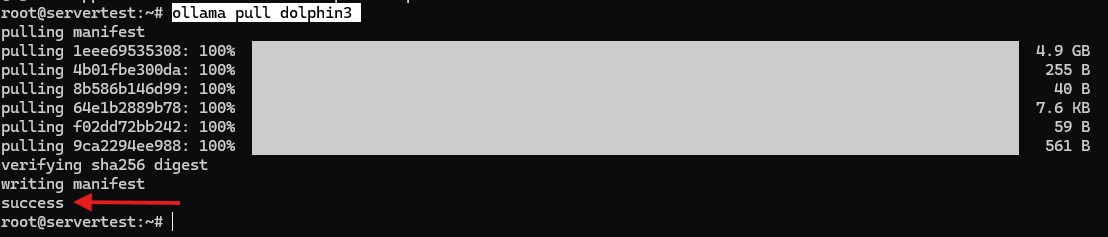
Adil bir test istiyorsanız, kabaca aynı boyut sınıfında yer alan modelleri karşılaştırın. Bu nedenle bu kılavuz, ana akım hizalanmış temel olarak llama3.1:8b ve daha az kısıtlı karşılaştırma modeli olarak dolphin3 kullanır. Her ikisi de 4.9GB civarında olup, davranış farkını donanım ayak izini çok drastik şekilde değiştirmeden yorumlamayı kolaylaştırır.
Karşılaştırma modellerini yerel olarak çekin:
ollama pull llama3.1:8b

ollama pull dolphin3
# Optional older reference model
ollama pull dolphin-mistral
Ollama ekosisteminin bu bölümünde görmeniz en muhtemel olan üç adın pratik çerçevesi:
| Model | Yaklaşık boyut | Bu makaledeki rol | Pratik okuma |
|---|---|---|---|
| llama3.1:8b | 4.9GB | Ana akım hizalanmış temel | “Normal” modern talimat takip davranışı için iyi varsayılan referans |
| dolphin3 | 4.9GB | Birincil daha az kısıtlı karşılaştırma | Benzer ayak izi, genellikle daha doğrudan, sık sık daha az dolgulu |
| dolphin-mistral | 4.1GB | İsteğe bağlı eski alternatif | Tarihsel olarak hala yararlı, ancak en iyi güncel günlük sürücü karşılaştırması değil |
⚠️ Uyarı: Farklı bir ince ayar, “sansür kaldırılmış aynı model” değildir. Doğruluk, sorumluluk reddi yoğunluğu ve kullanıcı çerçevesini takip etme istekliliğini değiştirebilir, ancak ton, gerçeklik, tutarlılık ve genel kişiliği de değiştirebilir.
GPU performansı
İstenen modelleri çalıştırmadan önce, ilgili donanımın olasılıklarını ve sınırlamalarını anlamak esastır. Bu nedenle, kavramsal olarak test edilecek iki şey vardır: birincisi, bu kılavuz için kullanılan gerçek donanımda temiz tek-GPU davranışının nasıl göründüğü; ikincisi, daha sonra aynı yığını çift-GPU ana bilgisayarda çalıştırırsanız ne değişir. Her ikisi de önemlidir, ancak yalnızca birincisi bu tam makineden canlı bir kanıttır.
Bu sunucuda, daha iyi üst düzey çalışma zamanı testi gpt-oss:20b‘dir. Bir 16GB kart üzerinde mantıklı olmaya devam ederken ilginç olmak için yeterince büyüktür.
ollama pull gpt-oss:20b

ollama stop mistral
ollama run gpt-oss:20b "Explain in one paragraph why a 14GB model is a realistic upper-end single-GPU test on a 16GB card."
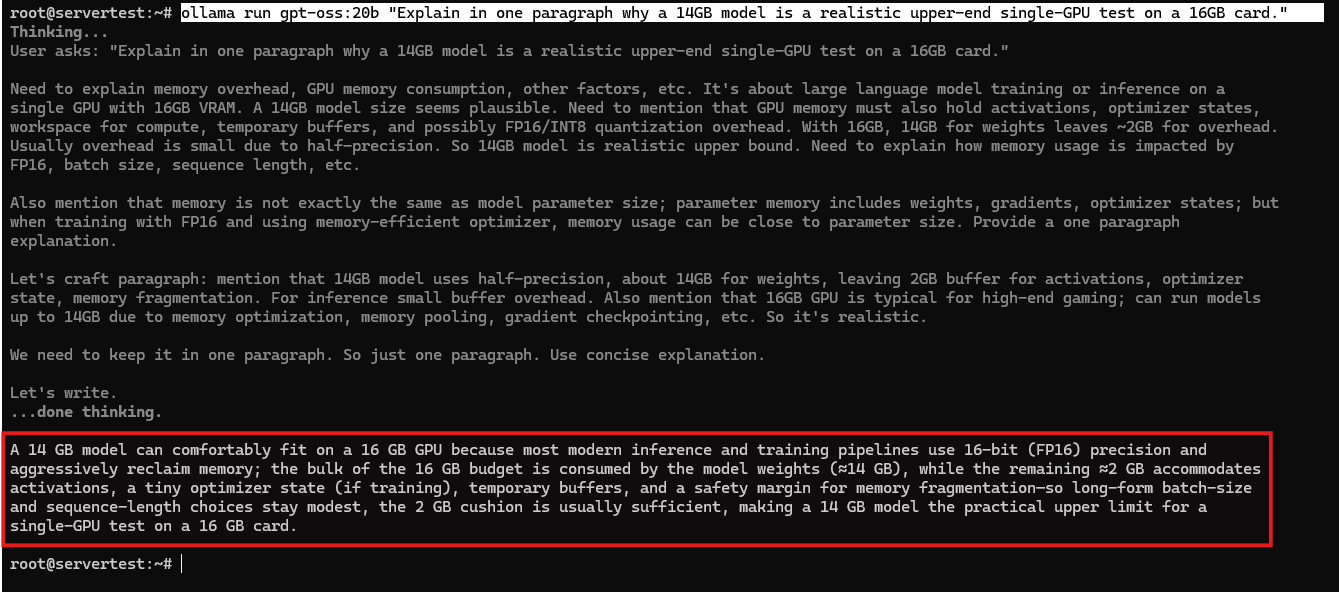
Model yüklendikten sonra, çalışma zamanı durumunu onaylayın:
ollama ps

Bu, bu makinede istediğiniz pratik kanıttır. Daha küçük modellerin kolayca uyduğunu ve daha büyük ancak yine de gerçekçi bir yerel modelin bir 16GB kartı birden fazla GPU’ya ihtiyaç duymadan kullanılabilir zarfına yaklaştırabileceğini gösterir.
Daha sonra Ollama’yı iki-GPU ana bilgisayarda çalıştırırsanız, qwen3:30b gibi bir model, çok-GPU yerleşimini gösterebilecek iş yükü türü haline gelir. İş akışı aynıdır — nvidia-smi‘yi izleyin, modeli çalıştırın, ollama ps‘i inceleyin — ancak nokta, her iki kartı kendi iyiliği için aydınlatmak değildir. Nokta, Ollama’nın bir modeli birden fazla GPU’ya yalnızca model artık bir GPU’ya temiz bir şekilde sığmadığında yayıldığını doğrulamaktır.
Sansür Atlama Hususları

Davranış karşılaştırması için, koşulları kontrol altında tutun, böylece modeli rastgelelikten daha fazla test edersiniz. Aynı endpoint’i, aynı prompt’u, stream: false, düşük sıcaklık ve sabit bir seed kullanın:
curl http://localhost:11434/api/generate -d '{
"model": "llama3.1:8b",
"prompt": "<comparison prompt>",
"stream": false,
"options": {
"temperature": 0.2,
"seed": 42
}
}'
Ardından aynı isteği “model”: “dolphin3” ile tekrarlayın. Sabit seed tüm varyansı ortadan kaldırmaz, ancak ton ve uyum farklılıklarını görmek için yeterli rastgeleliği azaltır.
- Güvenli bir ilk prompt şudur: “Bir LLM’yi kendi kendine barındırmak, kullanıcının modelin davranışını tamamen kontrol etmesi anlamına mı gelir? 4 madde halinde cevap verin. Doğrudan olun ve giriş kısımlarını atlayın.” Temsili bir llama3.1:8b cevabı şöyle seslendirilme eğilimindedir:
- Self-hosting gives you more control over deployment, privacy, and availability.
- It does not automatically remove the model's built-in alignment behavior.
- The model may still refuse or soften some responses depending on its training.
- Full control comes from combining self-hosting with careful model selection and configuration.
Aynı prompt’a temsili bir dolphin3 cevabı genellikle daha sade seslendirilir:
- You control the machine, the network boundary, and the serving layer. - You do not erase the model's training history just by running it locally. - Vendor-side policy can disappear, but model-side alignment can still remain. - Real control comes from choosing a model whose behavior matches your use case. - İkinci yararlı prompt şudur: “Bir gizlilik açısından duyarlı ekibin satıcı tarafından yönetilen AI’yi neden reddedebileceğine dair keskin beş cümlelik bir argüman yazın. Giriş ve sonuç yok.” llama3.1:8b genellikle uyum sağlar, ancak daha ölçülü bir kurumsal ton ile. dolphin3 istenen keskinliği daha kolay takip eder. Burada aradığınız fark budur: dramatik yasasız çıktı değil, doğruluk, çerçeveleme ve sorumluluk yoğunluğundaki değişiklikler.
- Doğrulama için üçüncü prompt kategorisi şu şekilde olabilir: bir yazarın alışılmadık, niş veya ana akım olmayan yaratıcı çalışmalar için yerel bir modeli tercih edebileceği beş gerçekçi nedeni sorun. Pratikte her iki model de cevap verir, ancak dolphin3 istenen ahlaki olmayan ton ve doğrudan cevaplara daha yakın kalmaya eğilimlidir.
Desen şu şekilde görünür:
| Prompt türü | llama3.1:8b temel davranışı | dolphin3 davranışı | Pratik sonuç |
|---|---|---|---|
| Doğruluk vs ihtiyat | Daha dikkatli, biraz daha açıklayıcı | Daha sıkıştırılmış ve doğrudan | Aynı gerçekler, farklı reddetme/sorumluluk stili |
| Keskin ton uyumu | Genellikle cevap verir, ancak retoriği yumuşatır | İstenen kenarı takip etmeye daha istekli | Çerçeveleme itaati model seçiminin bir parçasıdır |
| Niş yaratıcı çerçeveleme | Gerçekçi, bazen dolgulu | Gerçekçi, genellikle daha az ahlaklaştırıcı | “Daha az kısıtlı” genellikle saf yetenek değil, ton olarak ortaya çıkar |
Ve böylece, işte dürüst sonuçlar:
- Yerel model seçimi çıktı davranışını önemli ölçüde değiştirir.
- Farklı modeller doğruluk ve sorumluluk yoğunluğunda farklılık gösterir.
- Kendi kendine barındırma, satıcı tarafından kontrol edilen bir sunucu katmanını kaldırır.
Artık Yalnızca Prompt Değil, Tüm Stack’i Kontrol Ediyorsunuz

Bu kılavuzun başındaki hayal kırıklığı asla sadece bir modelin bir isteği reddetmesi hakkında değildi. Sunucu katmanı, politika katmanı ve gizlilik sınırının başka bir yerde yaşadığı gerçeğiydi. Bu kurulumdan sonra bu durum değişti. İnference sunucunuz Ubuntu makinenizde çalışıyor, yerel API sınırı sizin, model menüsü sizin, ve prompt/runtime varsayılanları ayarlamak için sizin.
Yine de yargı gerektiren kısım hiçbir yükleyicinin sizin için çözemeyeceği kısımdır: kullanım durumunuza uyan modelleri seçmek, onları mantıklı varsayılanlarla yönlendirmek ve localhost’un ötesine geçtiğinizde erişimi güvenli bir şekilde açığa çıkarmak. Bu, self-hosting kontrolünün gerçek şeklidir. Her kısıtlamadan sihirli bir özgürlük değil, ama çıkarımın nasıl, nerede ve hangi model ile gerçekleşeceğine karar veren stack’in sahipliği. Sonraki en iyi adımı istiyorsanız, özel bir Modelfile oluşturarak başlayın — ya da hazır olduğunuzda yerel API’nin önüne güvenli uzaktan erişim koyun.
Temel Kurulumdan Sonra Yapılacaklar

Bu noktada, temel söz yerine getirilmiştir. Sunucu çalışıyor, API çalışıyor, GPU yolu gerçek ve model davranış farklılıkları artık soyut değildir. Sonraki adım “kör kör daha fazla şey yüklemek” değildir. Şimdi size ait olan yığının parçalarını ayarlamaktır.
Modelfile ile Model Davranışını Özelleştirme
Modelfile, model ağırlıklarına dokunmadan yerel istem varsayılanlarını değiştirmenin en temiz yoludur. Genişlettiğiniz şeyi anlamak için modelin mevcut tanımını inceleyerek başlayın:
ollama show --modelfile dolphin3
Ardından basit bir yerel varyasyon oluşturun:
FROM dolphin3

SYSTEM You are a direct, factual assistant for a self-hosted Ubuntu LLM server.
Prefer short, practical answers and avoid padded disclaimers.

PARAMETER temperature 0.2
PARAMETER num_ctx 8192
Bunu yeni bir model adı olarak oluşturun ve test edin:
ollama create dolphin3-local -f ./Modelfile
ollama run dolphin3-local "Summarize what changed in this custom model in 3 bullets."
❗ Önemli: Bir Modelfile, modelin eğitim geçmişini değil, istem ve çalışma zamanı davranışını değiştirir. Tonu ve varsayılanları yönlendirebilir, ancak temel modeli yeniden eğitmez.
Kurulumu Güvenli Hale Getirme
Localhost bağlaması iyi bir varsayılandır, ancak güvenlik hikayesinin sonu değildir. Önce mevcut dinleme adresini yeniden kontrol edin:
ss -tlnp | grep 11434
Amaç Ollama’yı yalnızca yerel tutmaksa, bu davranışı systemd geçersiz kılması ile açıkça sabitleyin:
sudo systemctl edit ollama
Aşağıdakini ekleyin:
[Service]
Environment="OLLAMA_HOST=127.0.0.1:11434"
Environment="OLLAMA_NO_CLOUD=1"
Ardından hizmeti yeniden yükleyin ve yeniden başlatın:
sudo systemctl daemon-reload
sudo systemctl restart ollama
Daha sonra uzaktan erişime ihtiyacınız varsa, 11434 numaralı bağlantı noktasını doğrudan yayınlamayın. Bunun yerine önüne TLS ve kimlik doğrulaması ile bir ters proxy koyun:
server {
    listen 443 ssl http2;
    server_name llm.example.com;

    auth_basic "Restricted";
    auth_basic_user_file /etc/nginx/.htpasswd;

    location / {
        proxy_pass http://127.0.0.1:11434;
        proxy_set_header Host localhost:11434;
    }
}
⚠️ Uyarı: Genel açıklamayı ayrı bir sertleştirme projesi olarak değerlendirin. Ollama kendi başına yerel bir çıkarım sunucusudur, yerleşik kimlik doğrulama, hız sınırlaması ve internete açık varsayılanları olan üretim açısından hazır bir genel API ağ geçidi değildir.
Bu Donanım İçin Önerilen Modeller
Temel kurulum çalıştıktan sonra, en yüksek değerli iyileştirme, en büyük başlığı takip etmek yerine bu makineye gerçekten uyan modelleri seçmektir. Burada kullanılan tek 4070 Ti SUPER sunucusu için pratik menü şöyle görünür:
| Kullanım durumu | Model | Boyut | Beklenen yerleşim | Bu makineye neden uyar |
|---|---|---|---|---|
| İlk başarı | mistral | 4.4GB | Tek GPU | Hızlı, basit, düşük sürtünmeli doğrulama |
| Genel temel | llama3.1:8b | 4.9GB | Tek GPU | Güçlü ana akım referans noktası |
| Daha az kısıtlı 8B | dolphin3 | 4.9GB | Tek GPU | llama3.1:8b ile en iyi benzer karşılaştırma |
| Akıl yürütme katmanı | gpt-oss:20b | 14GB | Genellikle tek GPU | Temiz bir şekilde sığarken daha güçlü akıl yürütme |
| Daha yüksek kaliteli yerel katman | qwen3:30b | 19GB | Çift GPU veya daha büyük VRAM gerektirir | Bu tam makine için temiz bir uyum olmaktan ziyade gelecekteki yükseltme hedefi olarak daha iyidir |
| Kod odaklı katman | deepseek-coder:33b | 19GB | Çift GPU veya daha büyük VRAM gerektirir | Daha sonra daha büyük bir kutuya taşırsanız veya ikinci bir GPU eklerseniz güçlü seçenek |
| Yalnızca deneysel | llama3.1:70b | 43GB | Ciddi CPU dökümü / çok daha yavaş / azaltılmış bağlam değiş tokuşları | Ağır uzlaşmayı kabul etmediğiniz sürece bu ana bilgisayar için gerçekçi bir hedef değildir |
Otomatik Başlatma ve Bakım
Eğlenceli kısımdan sonra, bir ay sonra yerel bir LLM sunucusunu kullanılabilir tutan kısım gelir. Önyükleme zamanı davranışını onaylayın, hizmeti güncelleyin, günlükleri izleyin ve VRAM’ı geri almanız gerektiğinde büyük modelleri nasıl boşaltacağınızı bilin.
sudo systemctl is-enabled ollama
sudo systemctl enable --now ollama
curl -fsSL https://ollama.com/install.sh | sh
journalctl -u ollama -n 100 --no-pager
Günlük model işlemleri için, bunlar en sık kullanacağınız komutlardır:
ollama list
ollama ps
ollama stop gpt-oss:20b
sudo du -sh /usr/share/ollama/.ollama/models
Model depolaması daha büyük bir diske taşınması gerekiyorsa, Ollama’yı yeniden işaret etmeden önce dizini hizmet kullanıcısı için hazırlayın:
sudo mkdir -p /mnt/ai/ollama-models
sudo chown -R ollama:ollama /mnt/ai/ollama-models
Ardından OLLAMA_MODELS öğesini systemctl edit ollama aracılığıyla ayarlayın. Bu tek sahiplik ayrıntısı, bir depolama geçişinin izin sorununa dönüşmesini önleyen şeydir.
Sorun Giderme Başvurusu
Bir şey bozulduğunda, en hızlı yol genellikle rastgele yeniden yükleme döngülerine çalışmak yerine semptomun doğru katmanla eşleştirilmesidir. İlk geçiş olarak bu tabloyu kullanın:
| Semptom | Olası neden | Kontrol edin | Düzeltme |
|---|---|---|---|
| nvidia-smi başarısız olur | Sürücü veya GPU yığını sorunu | nvidia-smi, lspci -nnk | grep -A3 -Ei ‘VGA|3D|NVIDIA’, ubuntu-drivers devices | NVIDIA katmanını önce düzeltin; Ubuntu nouveau kullanıyorsa, önerilen NVIDIA sürücüsünü yükleyin, yeniden başlatın ve nvidia-smi öğesini yeniden çalıştırın |
| ollama.service başlamayacak | Hizmet, izin veya bağlama sorunu | systemctl status ollama, journalctl -u ollama -n 100 –no-pager | Modelleri çekmeden önce hizmet hatasını çözün |
| Model CPU’da çalışır | GPU keşfi başarısız oldu veya geri dönüş oluştu | ollama ps, günlükler | Hizmeti yeniden başlatın; gerekirse nvidia_uvm öğesini yeniden yükleyin |
| Yalnızca bir GPU etkin | Model bir karta sığıyor | watch -n 1 nvidia-smi | Bu normaldir; çok GPU’lu bir ana bilgisayarda, bir kartın VRAM zarfını aşan bir modelle test edin, çok GPU yerleşimini gözlemlemek istiyorsanız |
| Port 11434 0.0.0.0 üzerinde açıktır | Bağlama adresi değiştirildi | ss -tlnp | grep 11434 | OLLAMA_HOST=127.0.0.1:11434 öğesini ayarlayın ve yeniden başlatın |
| Depolama taşındıktan sonra model yolu hataları | Model dizininde yanlış sahiplik | ls -ld <model-dir> | sudo chown -R ollama:ollama <model-dir> |
| Askıya alma/devam ettirme sonrasında GPU kaybolur | NVIDIA UVM sorunu | günlükler ve GPU kontrolleri | Gerekirse nvidia_uvm öğesini yeniden yükleyin ve hizmeti yeniden başlatın |
Bu bölümden yalnızca bir operasyonel kuralı hatırlarsanız, bunu yapın: Ollama’yı tek kullanımlık bir CLI yardımcı programı değil, gerçek bir hizmet olarak değerlendirin. Günlükler, sahiplik, bağlama adresleri ve depolama yolları istem penceresi kadar önemlidir.