Отворен билет
  +373 79 600002
  Чат на живо в Telegram
  Често задавани въпроси
  български
 English
  Русский
  Română
  Deutsch
  Français
  Türkçe
  Español
  Português
  Українська
  Polski
  Indonesia
  中文 (中国)






































































































































 от всички хостинг услуги






Self-Host Ollama на LLM Server и Поемете Контрол над AI Цензурата
Ключови думи
Преди да се потопите в настройката, ето термините, които най-вероятно ще объркат читателите в това ръководство. Този бърз речник запазва ясната терминология на Linux, GPU и локални модели от самото начало.
| Ключова дума | Кратко обяснение |
|---|---|
| 🤖 LLM | Large Language Model; AI модел, който генерира текст от подсказки. |
| 🦙 Ollama | Локален изпълнител на модели и сървър за изтегляне, обслужване и извикване на LLM на вашата собствена машина. |
| 🖥️ GPU | Графичният процесор, използван тук за ускорение на изводите на модела. |
| 💾 VRAM | Паметта на GPU; това е един от основните ограничители на това колко голям модел може да се поместит на карта. |
| ⚡ Inference | Действието на изпълнение на модел за генериране на отговор. |
| 🔄 systemd | Мениджърът на услуги на Linux, използван за стартиране, спиране, рестартиране и активиране на услуги като Ollama. |
| 🧩 NVIDIA driver | Софтуерният слой, който позволява на Ubuntu да общува с NVIDIA GPU правилно за работни натоварвания на изчисления. |
| 🚫 nouveau | Драйвер с отворен код за графика на Linux, който може да предотврати правилната настройка на NVIDIA изчисления, ако се използва вместо официалния драйвер на NVIDIA. |
| 📊 nvidia-smi | Инструмент на NVIDIA от командния ред за проверка на видимостта на GPU, използване на VRAM и здравето на драйвера. |
| 🔌 API endpoint | URL адрес, който инструменти или скриптове извикват, за да изпратят подсказки към Ollama и да получат отговори. |
| ☁️ Vendor-controlled serving layer | Управляваният от доставчика API слой, който може да добави модериране, регистриране, налагане на политики или други контроли преди модел да отговори. |
| 🧬 Fine-tune | Модифицирана версия на базов модел, настроена за различен тон, поведение или специализирани задачи. |
| ⚖️ Model weights | Научените вътрешни параметри на модела; самостоятелното хостване не променя автоматично тези параметри. |
| 📝 Modelfile | Файл на Ollama, използван за създаване на персонализиран локален вариант на модела със собствена системна подсказка и параметри на изпълнението. |
| 🪪 UUID | Стабилен идентификатор на хардуера за GPU; често е по-безопасен от числови ID на устройства, тъй като редът на устройствата може да се промени. |
| 🔒 TLS | Криптирането, използвано от HTTPS и обратни прокита за защита на трафика между клиенти и сървъра. |
| 🌐 Reverse proxy | Фронтална услуга, която може да добави TLS, удостоверяване и контролиран публичен достъп преди препращане на заявки към Ollama. |
| 🎛️ Temperature / seed | Настройки на генериране; температурата влияе на произволността, докато фиксирано семе помага да се направят повторни тестове по-сравними. |
| 🧱 CPU spill / mixed path | Ситуация, при която част от модела или работното натоварване пада извън GPU паметта и използва CPU ресурси, което може да забави изводите. |
| 🔧 nvidia_uvm | Модул на ядрото на NVIDIA, свързан с управлението на GPU паметта, който понякога трябва да бъде преизтеглен по време на отстраняване на грешки. |
Защо самостоятелното хостване на LLM си струва

Ако вече сте направили трудната част — наели сте GPU сървър, инсталирали сте Ubuntu, научили сте се да използвате SSH и поддържате собствени услуги — става разочароващо бързо, когато хостван AI все още контролира последния етап. Той може да отхвърли перфектно обикновено заявление, да скрие отговора под отказвания, да промени стила на отговор без предупреждение и да пропусне всяко подсказване през чужди граници. За много технически потребители, това е истинското разочарование: не само това, което казва моделът, но кой контролира слоя за обслужване, когато го казва.
Това ръководство е за решаване на това с отворени и локални модели, не за трикове за заобикаляне на собственически API. Вие ще самостоятелно хостнете Ollama на Ubuntu GPU сървър, ще стартирате локално заключение, ще проверите че пътят на GPU е реален и ще видите какво се променя, когато изберете различно семейство модели. Една неправилна представа за уточняване рано: самостоятелното хостване не означава автоматично неограничено. Това означава, че контролирате много повече от стека — и спирате да зависите от контролиран от доставчик път на обслужване — но моделът, който стартирате, все още може да носи собственото си поведение на подравняване.
📝 Забележка: Командите в това ръководство са валидирани спрямо текущата документация на Ollama, но терминалните изходи, показани по-долу, са представителни примери, а не живи снимки на тестване. Използвайте ги като успешен модел, а не като твърдение за производителност.
До края ще имате работещ Ollama сервис на Ubuntu, проверен локален API на 127.0.0.1:11434, доказателство, че GPU-поддържаното заключение действително се случва, и обоснована сравнение между основен подравнен модел и по-малко ограничена алтернатива. Този урок е написан за читатели, които са удобни с SSH, Ubuntu, sudo и systemd, но които не имат нужда от предходния опит с Ollama.
Точният Ubuntu GPU сервър, използван за това ръководство

Това ръководство се основава на реална машина с един GPU под Ubuntu, защото неясни съвети от типа “трябва да работи на повечето сървъри” е начинът, по който ръководствата за самостоятелен хостинг стават подвеждащи. Референтната конфигурация тук е действителният клас хост, използван за това ръководство: видът машина, която един напреднал индивид, лаборатория или малък екип наистина би наел, когато желае частна локална инференция без преход директно към стелаж от корпоративни ускорители. Той все още ще обсъди поведението с множество GPU-та по-късно, защото Ollama се променя, когато модел надвишава един карт, но третирайте тази част като бъдещ контекст, а не като доказателство от този точен сървър.
GPU сервър — Ryzen 9 3950X + RTX 4070 Ti Super
| Компонент | Детайли |
|---|---|
| CPU | AMD Ryzen 9 3950X (16 ядра / 32 нишки) |
| GPU | 1× NVIDIA RTX 4070 Ti Super |
| VRAM | 16GB |
| Възможност | Силна за модели от клас 8B; по-големите модели стават решения за разливане или надстройка |
На практика това е много силна конфигурация за ежедневни модели от клас 8B и все още полезна за по-голяма локална работа до точката, където 16GB VRAM става реалното ограничение. Модел като llama3.1:8b с приблизително 4.9GB се поместява лесно на този карт. Модел като gpt-oss:20b с приблизително 14GB е видът горен тест с един GPU, който все още има смисъл тук. Модел като qwen3:30b с приблизително 19GB е по-добре да се третира като референтна точка за това какво се променя на по-голям или двойно-GPU хост, отколкото като чист подходящ вариант за тази точна машина.
Това разграничение е важно, защото целта на тази статия не е да натисне най-голямото възможно число в заглавие. Целта е да покаже как изглежда разумен самостоятелен LLM сървър, когато желаете поверителност, локален контрол и достатъчна GPU памет, за да стартирате полезни модели без постоянни компромиси. Този клас хардуер е където самостоятелната инференция става реалистична, а не теоретична.
Това също обяснява няколко избора, които ще видите по-късно: mistral се използва първо, защото дава бързо, нискотрибно доказателство, че стекът работи, докато сравнението на поведението остава в клас 8B, където тази машина е удобна. qwen3:30b все още се появява по-късно, но като теоретичен пример за видът модел, който може да задейства много-GPU разполагане на по-голям хост, а не като живо доказателство от този сървър. С очаквания зададени, следващата стъпка е да валидирате хоста, преди Ollama да го докосне.
Изпълнете тези проверки преди инсталация на Ollama
Започнете с nvidia-smi. Ако тази команда липсва или се провали, спрете там и първо поправете драйвера на NVIDIA. Не инсталирайте Ollama още, защото счупена NVIDIA стек ще направи всеки по-късен симптом да изглежда като отказ на приложението, когато всъщност е отказ на платформата.
Изпълнете първо проверката на GPU:
nvidia-smi
❗Ако Ubuntu казва, че nvidia-smi липсва, не приемайте, че сървърът няма GPU. Често срещан режим на отказ на наемни Ubuntu кутии е, че картата е налична, но все още е свързана към nouveau вместо драйвера на NVIDIA. Проверете първо раздел “Поправяне на проблем с драйвера на Nvidia на Ubuntu“.
Здравословен резултат на този клас сървър трябва да изглежда приблизително така:
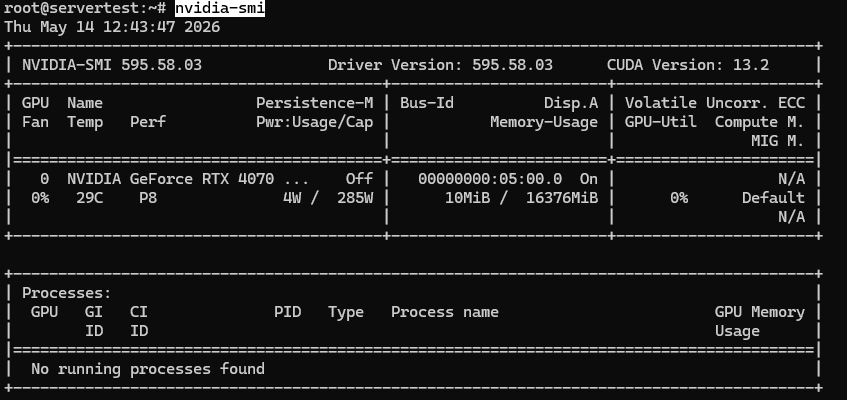
След като nvidia-smi работи и GPU е видим, продължете с проверките по-долу.
Това, което искате да потвърдите, е просто: инсталираният GPU е видим, той отчита приблизително 16GB VRAM на този хост и драйверът е зареден чисто. Ако сте на сървър с няколко GPU, същата команда трябва да изброи всяка карта.
nvidia-smi -L

❗ Важно: Документацията за поддръжка на GPU на Ollama използва драйвер на NVIDIA 531+ като реалния минимум за поддържана NVIDIA инференция. Третирайте 531+ като изискване за това ръководство, дори ако сте видели по-стари бележки от общността, цитиращи по-ниски версии.
Сега потвърдете, че хостът е наистина Ubuntu средата, която това ръководство предполага:
lsb_release -a
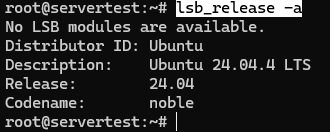
Накрая проверете свободното място на диска преди да започнете да изтегляте модели. Самата инсталация е малка; моделите не са. След като преминете отвъд малки тестове, библиотека от 20B-30B може да консумира десетки гигабайта бързо, така че 100GB+ свободно е правилното мислене преди сериозна локална работа с модели.
df -h /

Ако тези проверки преминат, сте изчистили основните неизвестни на инфраструктурата: GPU-та са налични, базовата линия на драйвера е разумна, Ubuntu е потвърдена и диска има място за реални изтегляния на модели. Това е точката, където инсталирането на Ollama става чист следващ етап вместо предположение.
Поправяне на проблем с драйвера на Nvidia на Ubuntu
Следвайте стъпките по-долу, за да поправите проблеми с командата “nvidia-smi”.
lspci -nnk | grep -A3 -Ei 'VGA|3D|NVIDIA'
Ако този изход показва карта на NVIDIA и ред като Kernel driver in use: nouveau, инсталирайте препоръчания пакет на драйвера на Ubuntu вместо да инсталирате само nvidia-utils.
Инсталирайте пакета ubuntu-drivers-common (необходим за управление на драйвери) и заглавките на ядрото за вашето текущо работещо ядро.
apt update
apt install -y ubuntu-drivers-common linux-headers-$(uname -r)
Сканирайте вашата система и изброите наличните собствени драйвери (напр. драйвери на NVIDIA GPU), които могат да бъдат инсталирани.
ubuntu-drivers devices
След това инсталирайте препоръчания пакет на драйвера. В нашия случай беше: nvidia-driver-595-open:
apt install -y nvidia-driver-595-open
reboot
След рестартирането, преизпълнете:
nvidia-smi
nvidia-smi -L
Инсталирайте Ollama и потвърдете, че услугата е здравословна
Поддържаният път на Ubuntu е официалният инсталатор на Ollama, не персонализиран tarball поток и не Docker заобиколка. Това е важно, защото това ръководство е за получаване на надежна локална услуга с предвидими настройки по подразбиране, systemd интеграция и разумно поведение на собствеността на Linux.
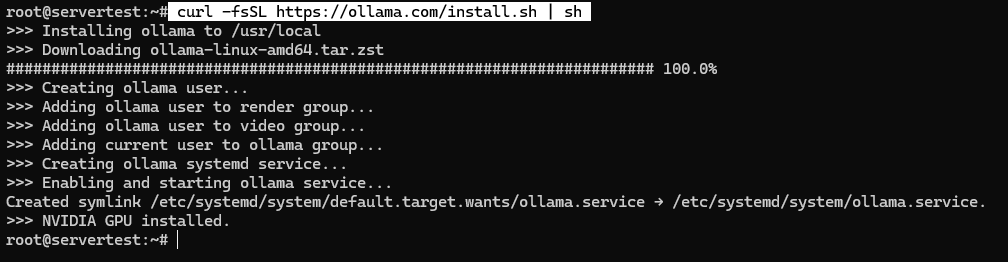
Стартирайте инсталатора точно както е документирано:
curl -fsSL https://ollama.com/install.sh | sh
На здравословна система скриптът инсталира двоичния файл, създава потребителя на услугата ollama, добавя правилните членства в групи, когато са налични, записва systemd единицата и стартира услугата, свързана с 127.0.0.1:11434.
След като скриптът завърши, валидирайте услугата вместо да предполагате успех:
sudo systemctl status ollama --no-pager
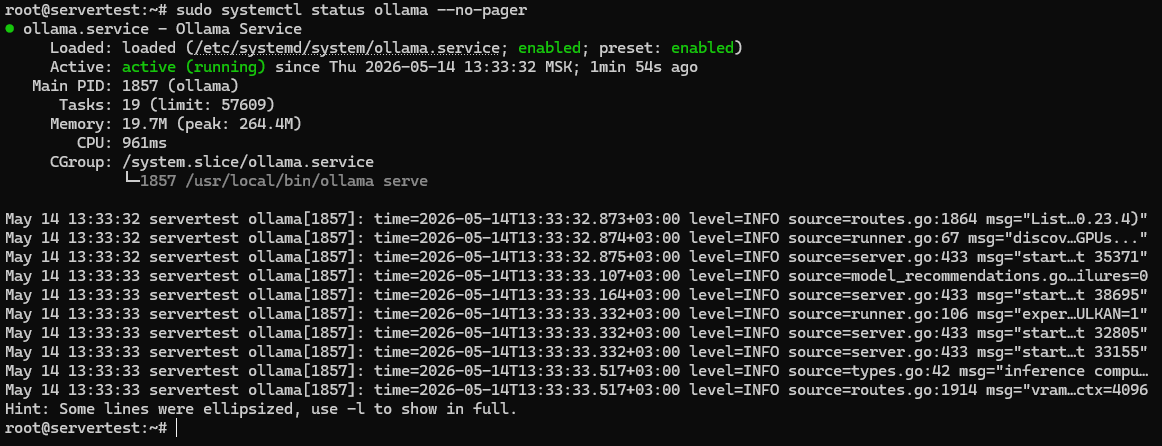
Вие търсите три неща тук: файлът на единицата присъства, услугата е активирана при стартиране и Active: active (running) потвърждава, че сървърът действително работи.
Първо, установете акаунта на потребителя на Linux услугата по конкретен начин и само след това мислете как и къде ще се обработва съхранението на модела.
getent passwd ollama

Този един ред обяснява много от бъдещото поведение. Моделите на Linux живеят под собствеността на услугата и ако по-късно ги преместите на друг диск без да поправите разрешенията за потребителя ollama, вие създавате собствено счупване.
Още една проверка затваря цикъла на привързаното по подразбиране:
ss -tlnp | grep 11434

⚠️ Внимание: Ollama не изисква удостоверяване на локалния API по подразбиране. Това е добре, когато е свързано с 127.0.0.1, но не е безопасно да излагате порт 11434 директно в интернет, сякаш е закалена публична услуга.
Ако услугата не се стартира чисто, отидете първо на дневниците вместо да преинсталирате сляпо:
journalctl -u ollama -n 100 --no-pager
Това е най-бързият начин да хванете проблеми с разрешенията, грешки при стартиране, проблеми с детектирането на драйвери или проблеми с привързване. След като услугата е здравословна на localhost, следващото нещо, което трябва да разберете, е как се държи GPU разположението по време на изпълнение.
Как Ollama всъщност използва един или множество GPU
Въпреки че сървърът, използван за това ръководство, има един GPU, поведението на множество GPU все още си струва да се разбере, защото много потребители могат да бъдат на по-големи машини или могат да се разширят по-късно. Много от объркванията с два GPU започват с грешното очакване: “Имам две карти, така че и двете трябва да светят през цялото време.” Това не е как работи Ollama. Практическото правило е много по-просто: ако модел се побира на един GPU, Ollama обикновено ще го держи на един GPU. Той се разпространява само на множество GPU, когато моделът не се побира удобно на една карта.
Използвайте тези две проверки заедно всеки път, когато искате да видите производителността на GPU:
ollama ps
watch -n 1 nvidia-smi
ollama ps ви казва как се обработва зареденият модел. 100% GPU означава, че моделът е напълно резидентен в GPU памет. 100% CPU означава, че GPU ускорението не се използва. Смесено състояние ви казва, че някаква част от работната натовареност или резидентност е преливала извън GPU пътя. watch -n 1 nvidia-smi допълва това, като показва живо VRAM използване на карта, докато моделът е зареден.
Най-бързият начин да держите тези роли прави е този:
| Команда | Какво доказва | Какво не доказва |
|---|---|---|
| ollama ps | Дали моделът работи на GPU, CPU или смесен път | Коя точна карта или карти носят натовареността |
| watch -n 1 nvidia-smi | Активност на VRAM в реално време на GPU | Дали използването на двойни GPU автоматично означава по-добър избор на модел |
📝 Забележка: CUDA_VISIBLE_DEVICES е контрол на видимостта, не “използвай и двата GPU” превключвател. Ако някога ограничите достъпа до GPU, предпочетайте UUID от nvidia-smi -L пред числови ID, защото редът на GPU може да варира между среди и рестартирания.
Стартирайте вашия първи локален модел и проверете GPU заключение
В този момент не ви трябва гигантски модел, за да докажете, че сървърът работи. Ви трябва бързо, честно успешно завършване. mistral е добър първи избор, защото е малък, бързо се изтегля и лесно се зарежда, въпреки че llama3.1:8b ще бъде по-късният базов модел за сравнение на поведението.
Започнете с изтегляне на модела:
ollama pull mistral
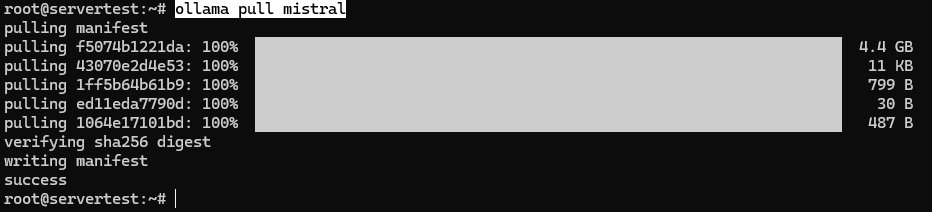
Сега пуснете малък подкана през него, за да направи машината нещо полезно, а не само административни задачи. Отговорът може да отнеме няколко секунди.
ollama run mistral "In one sentence, explain why people self-host LLMs."

За да докажете, че това е GPU-подкрепено заключение, а не CPU резервно решение, проверете състоянието на изпълнението:
ollama ps

И за да видите какво вече е на диска, изведете локалния инвентар:
ollama list

mistral е правилният първи доказателствен модел, защото ви дава бърз отговор без да превръща валидирането на настройката в дълго чакане. По-късно llama3.1:8b става по-полезен, защото е по-силен подравнен базов модел за сравнение на поведението на модела.
Накрая, проверете къде Linux инсталацията съхранява модели:
sudo du -sh /usr/share/ollama/.ollama/models

Този път — /usr/share/ollama/.ollama/models — е стандартното Linux хранилище на модели, документирано от Ollama.
Когато видите успешен отговор, 100% GPU в ollama ps и увеличаване на използването на диска в очаквания локалитет, имате първото значимо доказателство, че локалният стек работи.
Докажете, че това е сървър, а не просто CLI обвивка
Командният ред е хубав, но причината да самостоятелно хостирате Ollama не е само да чатите в терминал. Това е да стартирате локален inference сървър, който други инструменти, скриптове и приложения могат да извикват без да изпращат подсказки през чужда API граница. Най-бързото доказателство е един чист HTTP запрос към нативната Ollama крайна точка.
Изпратете локален generate запрос с деактивирано streaming, така че първият отговор е лесен за проверка:
curl http://localhost:11434/api/generate -d '{
"model": "mistral",
"prompt": "Say hello from a self-hosted Ollama server in one sentence.",
"stream": false
}'
Успешният отговор трябва да се върне като JSON и да изглежда приблизително така:
{
  "model": "mistral",
  "created_at": "2026-05-13T12:45:12.000000Z",
  "response": "Hello from a self-hosted Ollama server running locally on Ubuntu.",
  "done": true,
  "done_reason": "stop",
  "total_duration": 812345678,
  "load_duration": 12345678,
  "prompt_eval_count": 14,
  "eval_count": 12
}
Контролният списък за успех е прост: HTTP запросът работи локално, валиден JSON се връща, done: true присъства, и отговорът на модела е в response. Това е точката, където Ollama престава да бъде “CLI, който случайно изтегля модели” и се превръща в инфраструктура, която наистина можете да интегрирате в локални инструменти и автоматизация.
Ако искате съвместимост със софтуер, който очаква OpenAI-стилна форма на запрос, Ollama също експозира /v1 крайни точки локално:
curl -X POST http://localhost:11434/v1/chat/completions
-H "Content-Type: application/json"
-d '{
"model": "mistral",
"messages": [
{"role": "user", "content": "Say this is a test."}
]
}'
📝 Забележка: Етикетът “OpenAI-съвместим” е лесно да се неправилно прочете. Това не означава, че разговаряте с OpenAI, и не променя факта, че сървърът все още е локален. Това означава само, че формата на запрос е достатъчно позната за инструменти и SDK-та, построени около OpenAI API модела. Базовият URL остава http://localhost:11434/v1/, и всеки заместител API ключ, който някои клиентски библиотеки настояват, може да бъде игнориран за локално Ollama използване.
Откъде наистина идват ограниченията на модела

Това е частта, която обикновено се свива в една неясна идея за “цензура”, но технически има три различни слоя: слоят на сървъра на доставчика, подравняването на модела и инструктажното настройване, и поведението на подсказката/времето на изпълнение, което контролирате сами. Самостоятелното хостване променя някои от тези слоеве драматично. Не ги изтрива всички.
Един прост начин да си го представите е този:
Cloud API request:
You -> Vendor API gateway -> Vendor moderation / policy layer -> Model -> Response

Self-hosted Ollama request:
You -> Local Ollama server on 127.0.0.1 -> Model -> Response
Резултати:
– Слоят на сървъра, контролиран от доставчика, изчезва от локалния път
– Локалната мрежа и границата на логването стават ваши
– Собственото обучение и подравняване на модела все още идват с модела
Когато разделите слоевете, по-ранните стъпки на настройката стават много по-значими:
| Слой | Контролиран локално след това настройване? | Доказателствена точка | Какво все още остава вярно |
|---|---|---|---|
| Процес на сървъра | Да | ollama.service работи на Ubuntu | Вие сега контролирате времето на работа, логовете, актуализациите и адреса на свързване |
| Граница на мрежата | Да | 127.0.0.1:11434 проверка на свързване | Локалните заявки вече не изискват хоп на модерация от доставчика |
| Системна подсказка / стандарти на времето на изпълнение | Да | Modelfile за контролирано системно съобщение | Можете да управлявате поведението, но не да пренапишете обучението |
| Слой на модерация от страна на доставчика | Обикновено премахнат за локално-само заключение | Нативното локално API повикване успешно на localhost | Това е един от най-големите преводи на контрол, които ви дава самостоятелното хостване |
| Подравняване на модела в теглата | Не, не автоматично | Различно настройване на модела, дава различни резултати | Локалният модел все още може да се колебае, отказва или морализира |
| Избор на семейство модела | Да | llama3.1:8b срещу dolphin3 | Изберете този, който най-добре отговаря на вашите нужди |
Можете да си го представите като сценична продукция. Самостоятелното хостване променя сцената, осветлението, микрофоните и режисьорските бележки. Не преучава актьора. Ако модел е бил настроен да отговаря предпазливо, често да се колебае или отказва определени видове рамки, пускането му локално няма да отмени магически това обучение.
Това, което вашата текуща настройка вече е доказала, е по-тясно, но все още важно: контролирате процеса на сървъра, контролирате границата на API и вече не маршрутизирате локалните подсказки през слой на модерация, собственост на доставчика. Това е реална промяна в поверителност и контрол. Това, което не е доказало, е, че всеки локален модел ще се държи по един и същи начин или че всеки отказ в бъдещето е причинен от облачен доставчик.
Тук идва избора на модела. Ако искате практическия ефект на по-малко отказване, по-преки отговори или по-малко поведение, пълно с отказване, не стигате там, като казвате “самостоятелно хостване” по-силно. Стигате там, като избирате различно семейство модела или фина настройка — и като разбирате компромисите, които идват с него.
Изберете по-малко ограничен локален модел

Ако искате справедлив тест, сравнете модели, които заемат приблизително един и същи размер. Затова това ръководство използва llama3.1:8b като основна линия на основния подравнен модел и dolphin3 като модел за сравнение с по-малко ограничения. И двата са около 4.9GB, което прави разликата в поведението по-лесна за интерпретиране без също така да променя твърде драстично хардуерния отпечатък.
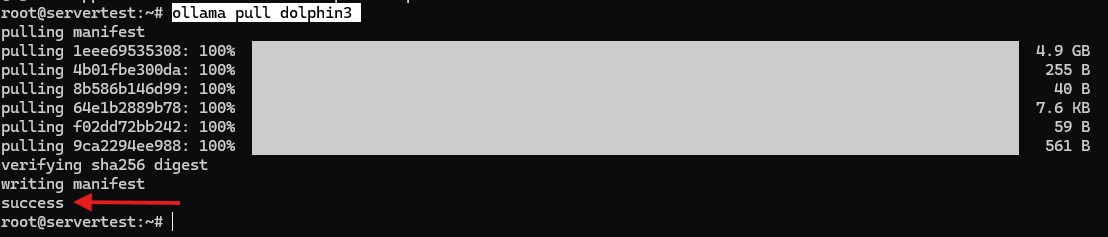
Изтеглете моделите за сравнение локално:
ollama pull llama3.1:8b

ollama pull dolphin3
# Optional older reference model
ollama pull dolphin-mistral
Ето практическото обяснение на трите имена, които най-вероятно ще видите в тази част на екосистемата на Ollama:
| Модел | Приблизителен размер | Роля в тази статия | Практическо четене |
|---|---|---|---|
| llama3.1:8b | 4.9GB | Основна линия на основния подравнен модел | Добра референция по подразбиране за “нормално” съвременно поведение при следване на инструкции |
| dolphin3 | 4.9GB | Първично сравнение с по-малко ограничения | Подобен отпечатък, обикновено по-преки, често по-малко подложени |
| dolphin-mistral | 4.1GB | Опционална по-стара алтернатива | Все още полезна исторически, но не е най-добрата текуща алтернатива за ежедневна употреба |
⚠️ Предупреждение: Различна фина настройка не е “един и същи модел с премахната цензура.” Тя може да промени преките отговори, плътност на отказите и готовност да следва рамката на потребителя, но може също да промени тона, точността, последователността и цялостната личност.
GPU производителност
Преди да стартирате желаните модели, първо е от съществено значение да разберете възможностите и ограниченията на включеното оборудване. Така че има две неща за тестване концептуално: първо, как изглежда чистото поведение на един GPU на действителното оборудване, използвано за това ръководство; второ, какво се променя, ако по-късно стартирате същия стек на хост с два GPU. И двете имат значение, но само първото е живо доказателство от точно тази машина.
На този сървър, по-добрият тест на горния край на времето за изпълнение е gpt-oss:20b. Той е достатъчно голям, за да бъде интересен, докато все още има смисъл на една 16GB карта.
ollama pull gpt-oss:20b

ollama stop mistral
ollama run gpt-oss:20b "Explain in one paragraph why a 14GB model is a realistic upper-end single-GPU test on a 16GB card."
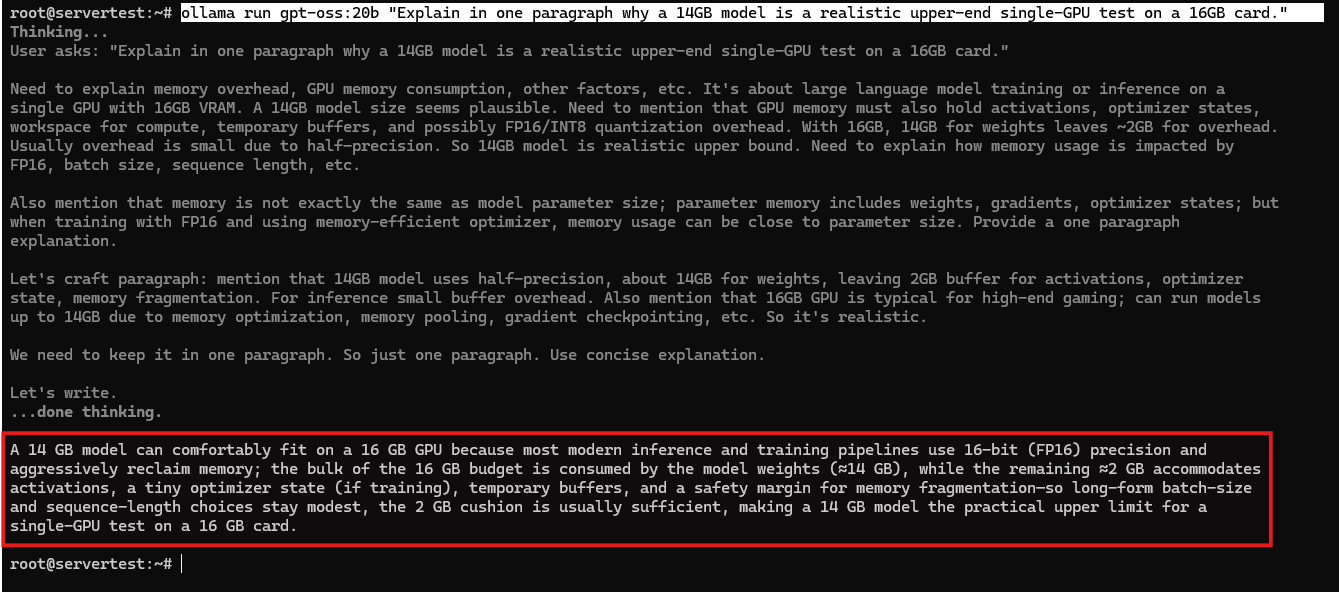
След като моделът се зареди, потвърдете състоянието на времето за изпълнение:
ollama ps

Това е практическото доказателство, което искате на тази машина. Показва, че по-малките модели се поместват лесно и че по-голям, но все още реалистичен локален модел може да натисне една 16GB карта близо до нейния използваем обхват без да се нуждае от множество GPU.
Ако по-късно стартирате Ollama на хост с два GPU, модел като qwen3:30b става вид работна натовареност, която може да демонстрира поставяне на множество GPU. Работния процес е същият — наблюдавайте nvidia-smi, стартирайте модела, проверете ollama ps — но точката не е да направите и двете карти светлини за собствено благо. Точката е да потвърдите, че Ollama разпределя модел на множество GPU само когато моделът вече не се поместява чисто на един.
Съображения относно заобикаляне на цензурата

За сравнение на поведението, поддържайте условията контролирани, така че да тествате модела повече от случайността. Използвайте същата крайна точка, същия подкана, stream: false, ниска температура и фиксирано семе:
curl http://localhost:11434/api/generate -d '{
"model": "llama3.1:8b",
"prompt": "<comparison prompt>",
"stream": false,
"options": {
"temperature": 0.2,
"seed": 42
}
}'
След това повторете същата заявка с “model”: “dolphin3”. Фиксираното семе не елиминира цялата вариация, но намалява достатъчно случайност, за да направи разликите в тона и съответствието по-лесни за виждане.
- Безопасна първа подкана е: “Означава ли самостоятелното хостване на LLM, че потребителят напълно контролира поведението на модела? Отговорете в 4 точки. Бъдете преки и пропуснете преамбюлите.” Типичен отговор на llama3.1:8b звучи така:
- Self-hosting gives you more control over deployment, privacy, and availability.
- It does not automatically remove the model's built-in alignment behavior.
- The model may still refuse or soften some responses depending on its training.
- Full control comes from combining self-hosting with careful model selection and configuration.
Типичен отговор на dolphin3 на същата подкана често звучи по-опростен:
- You control the machine, the network boundary, and the serving layer. - You do not erase the model's training history just by running it locally. - Vendor-side policy can disappear, but model-side alignment can still remain. - Real control comes from choosing a model whose behavior matches your use case. - Втора полезна подкана е: “Напишете остър аргумент от пет изречения защо един екип, чувствителен към поверителност, може да отхвърли управляван от доставчик AI. Без въведение и без заключение.” llama3.1:8b обикновено се съгласува, но в по-измерен корпоративен тон. dolphin3 по-лесно следва исканата острота. Това е видът разлика, която трябва да търсите тук: не драматичен беззаконен резултат, а промени в преките, рамката и плътността на отказите.
- Третата категория подкани за валидиране може да бъде следната: попросете пет фактически причини, поради които писател може да предпочете локален модел за необичайна, нишева или немейнстрийм творческа работа. На практика и двата модела отговарят, но dolphin3 има тенденция да остане по-близо до исканата неморализираща тон и преки отговори.
Моделът изглежда така:
| Тип подкана | Базово поведение на llama3.1:8b | Поведение на dolphin3 | Практическо заключение |
|---|---|---|---|
| Преки срещу предпазливост | По-внимателен, малко по-обяснителен | По-компресиран и преки | Същите факти, различен стил на отказ/отказ |
| Съответствие на остър тон | Често отговаря, но смекчава реториката | По-готин да следва исканото острие | Послушанието на рамката е част от избора на модела |
| Нишева творческа рамка | Фактическа, понякога подплатена | Фактическа, обикновено по-малко морализиране | “По-малко ограничена” често се появява като тон, а не чиста способност |
И така, ето честните заключения:
- Избора на локален модел значително променя поведението на резултата.
- Различните модели варират в преките и плътността на отказите.
- Самостоятелното хостване премахва слой за обслужване, контролиран от доставчик.
Вие сега контролирате Stack, не само Prompt

Разочарованието от началото на това ръководство никога не беше само за модел, който отказва заявка. Беше за факта, че слоят за обслужване, слоят на политиката и границата на поверителност живееха някъде другаде. След тази настройка, тази част се е променила. Вашият inference сървър работи на вашата Ubuntu машина, локалната граница на API е ваша, менюто на модела е ваше, и вашите prompt/runtime стойности по подразбиране са ваши за настройка.
Това, което все още изисква преценка, е частта, която никой инсталатор не може да реши за вас: избор на модели, които съответстват на вашия случай на употреба, управление на тях със разумни стойности по подразбиране, и предоставяне на достъп безопасно, ако преминете отвъд localhost. Това е истинската форма на контрол при самостоятелен хостинг. Не магическа свобода от всяко ограничение, а собственост на stack, който решава как, където и с кой модел се случва inference. Ако искате най-добрата следваща стъпка, започнете с създаване на персонализиран Modelfile — или с поставяне на безопасен отдалечен достъп пред локалния API, когато сте готови.
Какво да направите след базовата настройка

В този момент основното обещание е изпълнено. Сървърът работи, API работи, GPU пътят е реален, и разликите в поведението на модела вече не са абстрактни. Следващата стъпка не е “инсталирай повече неща сляпо”. Това е да настроите частите на стека, които сега принадлежат на вас.
Персонализиране на поведението на модела с Modelfile
Modelfile е най-чистият начин да промените локалните подразбирания за подсказване без да докосвате самите тегла на модела. Започнете с проверка на текущото определение на модела, за да разберете какво разширявате:
ollama show --modelfile dolphin3
След това създайте просто локално вариант:
FROM dolphin3

SYSTEM You are a direct, factual assistant for a self-hosted Ubuntu LLM server.
Prefer short, practical answers and avoid padded disclaimers.

PARAMETER temperature 0.2
PARAMETER num_ctx 8192
Изградете го като ново име на модел и го тестирайте:
ollama create dolphin3-local -f ./Modelfile
ollama run dolphin3-local "Summarize what changed in this custom model in 3 bullets."
❗ Важно: Modelfile променя поведението на подсказване и изпълнение, а не историята на обучението на модела. Може да управлява тона и подразбиранията, но не преобучава основния модел.
Защита на настройката
Привързването към localhost е добро подразбиране, но не е краят на историята за сигурност. Проверете отново текущия адрес на слушане:
ss -tlnp | grep 11434
Ако целта е да запазите Ollama само локално, закрепете това поведение изрично с systemd преопределение:
sudo systemctl edit ollama
Добавете следното:
[Service]
Environment="OLLAMA_HOST=127.0.0.1:11434"
Environment="OLLAMA_NO_CLOUD=1"
След това презаредете и рестартирайте услугата:
sudo systemctl daemon-reload
sudo systemctl restart ollama
Ако имате нужда от отдалечен достъп по-късно, не публикувайте 11434 директно. Вместо това поставете обратен прокси с TLS и удостоверяване пред него:
server {
    listen 443 ssl http2;
    server_name llm.example.com;

    auth_basic "Restricted";
    auth_basic_user_file /etc/nginx/.htpasswd;

    location / {
        proxy_pass http://127.0.0.1:11434;
        proxy_set_header Host localhost:11434;
    }
}
⚠️ Предупреждение: Третирайте публичното излагане като отделен проект за укрепване. Ollama сам по себе си е локален сървър за извод, а не готин за производство публичен API шлюз с вградена удостоверяване, ограничаване на честотата и интернет-ориентирани подразбирания.
Препоръчани модели за този хардуер
След като базовата инсталация работи, най-висока стойност подобрение е избирането на модели, които наистина се вписват добре в тази машина, вместо да преследвате най-големия заглавие. За сървъра с един 4070 Ti SUPER, използван тук, практическото меню изглежда така:
| Случай на употреба | Модел | Размер | Очаквано разположение | Защо се вписва в тази машина |
|---|---|---|---|---|
| Първи успех | mistral | 4.4GB | Един GPU | Бързо, просто, валидиране без триене |
| Общо базово ниво | llama3.1:8b | 4.9GB | Един GPU | Силна основна референтна точка |
| По-малко ограничен 8B | dolphin3 | 4.9GB | Един GPU | Най-добро сравнение един-към-един с llama3.1:8b |
| Ниво разсъждение | gpt-oss:20b | 14GB | Обикновено един GPU | По-силно разсъждение, докато все още се вписва чисто |
| Ниво с по-висока качество локално | qwen3:30b | 19GB | Нужен е двоен GPU или по-голяма VRAM | По-добре като цел за бъдещо надстройване, отколкото чисто прилягане за тази точна машина |
| Ниво, фокусирано на код | deepseek-coder:33b | 19GB | Нужен е двоен GPU или по-голяма VRAM | Силна опция, ако преместите на по-голяма кутия или добавите втори GPU по-късно |
| Само експериментално | llama3.1:70b | 43GB | Тежко разливане на CPU / много по-бавно / намалени компромиси на контекста | Не е реалистична цел за този хост, освен ако не приемете тежки компромиси |
Автоматичен старт и поддръжка
След забавната част идва частта, която поддържа локален LLM сървър използваем месец по-късно. Потвърдете поведението при стартиране, поддържайте услугата актуална, наблюдавайте логовете и знайте как да разтоварите големи модели, когато имате нужда от VRAM обратно.
sudo systemctl is-enabled ollama
sudo systemctl enable --now ollama
curl -fsSL https://ollama.com/install.sh | sh
journalctl -u ollama -n 100 --no-pager
За ежедневни операции с модели, това са командите, които ще използвате най-често:
ollama list
ollama ps
ollama stop gpt-oss:20b
sudo du -sh /usr/share/ollama/.ollama/models
И ако хранилището на модела трябва да се премести на по-голям диск, подгответе директорията за потребителя на услугата, преди да пренасочите Ollama:
sudo mkdir -p /mnt/ai/ollama-models
sudo chown -R ollama:ollama /mnt/ai/ollama-models
След това задайте OLLAMA_MODELS чрез systemctl edit ollama. Този един детайл на собственост е това, което предотвратява миграцията на хранилище да се превърне в проблем с разрешения.
Справочник за отстраняване на неизправности
Когато нещо се счупи, най-бързият път обикновено е съпоставянето на симптома с правилния слой, вместо да опитвате произволни цикли на преинсталиране. Използвайте тази таблица като първи преминаване:
| Симптом | Вероятна причина | Проверка | Поправка |
|---|---|---|---|
| nvidia-smi се проваля | Проблем с драйвер или GPU стек | nvidia-smi, lspci -nnk | grep -A3 -Ei ‘VGA|3D|NVIDIA’, ubuntu-drivers devices | Първо поправете NVIDIA слоя; ако Ubuntu използва nouveau, инсталирайте препоръчания NVIDIA драйвер, рестартирайте и преустановете nvidia-smi |
| ollama.service няма да стартира | Проблем със услуга, разрешение или привързване | systemctl status ollama, journalctl -u ollama -n 100 –no-pager | Разрешете грешката на услугата, преди да издърпате модели |
| Модел работи на CPU | Откритието на GPU се провали или се случи отстъпление | ollama ps, логове | Рестартирайте услугата; ако е необходимо, преустановете nvidia_uvm |
| Активен е само един GPU | Моделът се вписва на една карта | watch -n 1 nvidia-smi | Това е нормално; на хост с множество GPU, тестирайте с модел, който превишава VRAM обвивката на една карта, ако искате да наблюдавате разположение на множество GPU |
| Порт 11434 е излаган на 0.0.0.0 | Адресът на привързване се промени | ss -tlnp | grep 11434 | Задайте OLLAMA_HOST=127.0.0.1:11434 и рестартирайте |
| Грешки в пътя на модела след преместване на хранилище | Неправилна собственост на директория на модела | ls -ld <model-dir> | sudo chown -R ollama:ollama <model-dir> |
| GPU изчезва след приспиване/събуждане | Проблем с NVIDIA UVM | логове и проверки на GPU | Преустановете nvidia_uvm и рестартирайте услугата, ако е необходимо |
Ако запомните само едно оперативно правило от този раздел, нека да е това: третирайте Ollama като реална услуга, а не като разпоредима CLI полезност. Логове, собственост, адреси на привързване и пътища на хранилище имат същото значение като прозореца на подсказване.