Open Ticket
  +373 79 600002
  Telegram Live Chat
  F.A.Q
F.A.Q  English
 Русский
  Română
  Deutsch
  Français
  Türkçe
  Español
  Português
  Українська
  български
  Polski
  Indonesia
  中文 (中国)






































































































































 on All Hosting Services






How to Configure a Firewall with Firewalld on Linux (Complete Guide)
Securing your Linux server against unauthorized access and malicious traffic is not optional — it is a fundamental responsibility for any system administrator. Whether you are running a personal project, a business application, or a production web server, a properly configured firewall is your first and most critical line of defense. Firewalld is one of the most powerful and flexible firewall management tools available on Linux, offering dynamic rule management, zone-based traffic control, and rich rule support — all without requiring a full service restart when changes are applied.
This comprehensive guide walks you through everything you need to know: installing Firewalld, understanding zones, managing services and ports, writing rich rules, and monitoring your firewall in real time. If you are hosting on a VPS or Dedicated Server from AlexHost, this guide will help you lock down your environment and maintain a strong, adaptive security posture.
What Is Firewalld and Why Should You Use It?
Firewalld is a dynamic firewall management daemon available on most major Linux distributions, including CentOS, RHEL, Fedora, Rocky Linux, AlmaLinux, and increasingly on Debian and Ubuntu as well. Unlike the older iptables approach — where every rule change required flushing and reloading the entire ruleset — Firewalld applies changes dynamically at runtime without interrupting active connections.
Key Advantages of Firewalld
- Zone-based architecture — assign different trust levels to different network interfaces or IP ranges
- Dynamic rule updates — apply changes without restarting the firewall or dropping existing connections
- Service abstraction — manage traffic by service name (e.g.,
http,ssh) rather than raw port numbers - Rich rules — write complex, conditional rules targeting specific IPs, protocols, and actions
- D-Bus integration — allows other applications and services to interact with the firewall programmatically
- IPv4 and IPv6 support — manage both protocol families from a single interface
Prerequisites
Before proceeding, ensure you have:
- A Linux server running CentOS 7/8/9, RHEL, Fedora, Rocky Linux, AlmaLinux, Debian, or Ubuntu
- Root or
sudoaccess to the server - A basic understanding of Linux terminal commands
- An active SSH session (keep it open throughout — you will be modifying firewall rules)
> Critical Warning: Always ensure that SSH (port 22 by default) is explicitly allowed in your firewall rules before enabling Firewalld. Locking yourself out of a remote server is a common and avoidable mistake.
Step 1: Installing Firewalld
Firewalld is included in the default repositories of most major Linux distributions. Use the appropriate package manager for your system.
On CentOS / RHEL / Rocky Linux / AlmaLinux
sudo yum install firewalld -yOr, on newer versions using DNF:
sudo dnf install firewalld -yOn Fedora
sudo dnf install firewalld -y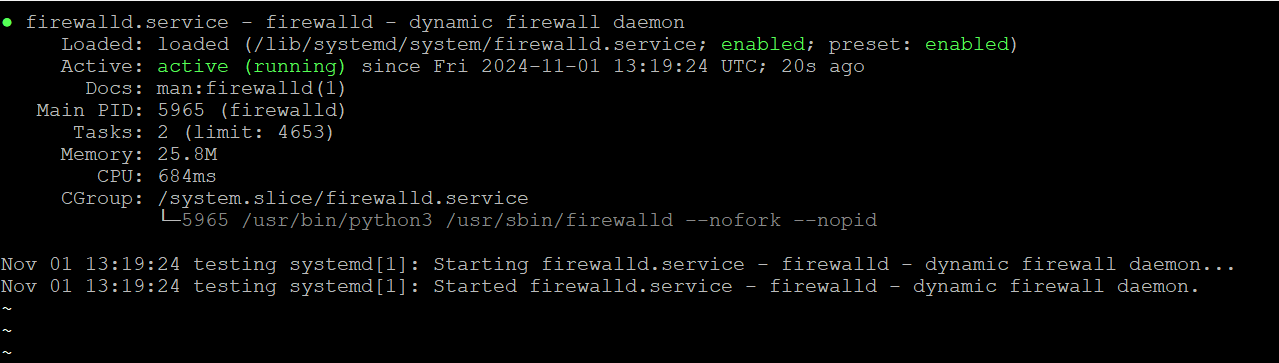
On Debian / Ubuntu
While Firewalld is most commonly associated with RHEL-based systems, it is fully supported on Debian-based distributions:
sudo apt update
sudo apt install firewalld -y
> Note for Ubuntu/Debian users: If ufw is currently active on your system, disable it before enabling Firewalld to avoid conflicts:
> “`bash
> sudo ufw disable
> “`
Step 2: Starting and Enabling Firewalld
After installation, start the Firewalld service and configure it to launch automatically at system boot:
sudo systemctl start firewalld
sudo systemctl enable firewalld
Verify that the service is running correctly:
sudo systemctl status firewalldYou should see output similar to:
● firewalld.service - firewalld - dynamic firewall daemon
   Loaded: loaded (/usr/lib/systemd/system/firewalld.service; enabled)
   Active: active (running) since ...
If the status shows active (running), Firewalld is operational and ready to configure.
Step 3: Understanding Firewalld Zones
The zone-based model is the cornerstone of Firewalld's architecture. A zone defines a trust level for a network connection or interface. Each zone contains its own set of rules that determine what traffic is allowed or denied.

Built-In Firewalld Zones
| Zone | Trust Level | Typical Use Case |
|---|---|---|
drop | Lowest | All incoming connections are dropped with no reply |
block | Very Low | Incoming connections are rejected with an ICMP message |
public | Low | Default zone for untrusted public networks |
external | Low | For external-facing interfaces with NAT masquerading |
dmz | Medium | Servers accessible from the outside but isolated internally |
work | Medium-High | Work networks with moderate trust |
home | High | Home networks where other hosts are trusted |
internal | High | Internal networks, similar to home |
trusted | Highest | All connections are accepted |
Check the Current Default Zone
sudo firewall-cmd --get-default-zone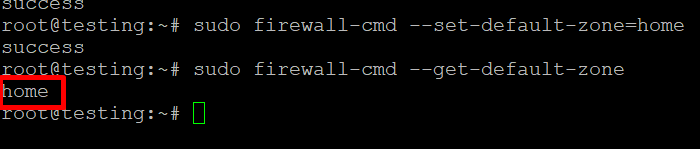
List All Available Zones
sudo firewall-cmd --get-zones
View Currently Active Zones and Their Interfaces
sudo firewall-cmd --get-active-zonesExample output:
public
  interfaces: eth0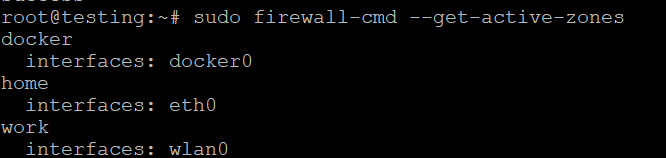
Step 4: Changing the Default Zone
Example 1 — Setting the Default Zone to public (Recommended for VPS/Dedicated Servers)
For most internet-facing servers, public is the appropriate default zone. It applies a conservative trust level and only allows explicitly permitted traffic:
sudo firewall-cmd --set-default-zone=publicVerify the change:
sudo firewall-cmd --get-default-zoneExpected output:
publicExample 2 — Setting the Default Zone to home
If your server operates on a trusted private network (such as a home lab or internal development environment), the home zone allows more permissive communication between trusted hosts:
sudo firewall-cmd --set-default-zone=homeVerify:
sudo firewall-cmd --get-default-zoneExpected output:
homeExample 3 — Setting the Default Zone to work
For servers on a corporate or work network where moderate trust is appropriate:
sudo firewall-cmd --set-default-zone=workVerify:
sudo firewall-cmd --get-default-zoneExpected output:
workStep 5: Managing Services with Firewalld
Firewalld includes a library of predefined service definitions that map service names to their corresponding ports and protocols. This makes it far easier to manage rules by intent rather than by raw port numbers.
List All Predefined Services
sudo firewall-cmd --get-servicesAllow a Service in a Zone
To allow HTTP traffic (port 80/TCP) in the public zone permanently:
sudo firewall-cmd --zone=public --add-service=http --permanentTo allow HTTPS traffic (port 443/TCP):
sudo firewall-cmd --zone=public --add-service=https --permanentTo allow SSH (port 22/TCP) — always ensure this is permitted before making other changes:
sudo firewall-cmd --zone=public --add-service=ssh --permanentApply Changes by Reloading Firewalld
The --permanent flag writes the rule to the persistent configuration but does not apply it immediately to the running firewall. Always reload after making permanent changes:
sudo firewall-cmd --reloadVerify Services in a Zone
sudo firewall-cmd --zone=public --list-services

Example output:
dhcpv6-client http https sshRemove a Service from a Zone
To remove HTTPS from the public zone:
sudo firewall-cmd --zone=public --remove-service=https --permanent
sudo firewall-cmd --reload
Step 6: Managing Ports Directly
In cases where a service does not have a predefined Firewalld definition, you can open or close specific ports directly.
Open a Specific Port
To open port 8080 over TCP in the public zone:
sudo firewall-cmd --zone=public --add-port=8080/tcp --permanent
sudo firewall-cmd --reload
To open a UDP port (e.g., port 53 for DNS):
sudo firewall-cmd --zone=public --add-port=53/udp --permanent
sudo firewall-cmd --reload
To open a range of ports (e.g., 6000–6100 TCP):
sudo firewall-cmd --zone=public --add-port=6000-6100/tcp --permanent
sudo firewall-cmd --reload
Close a Specific Port
To close port 8080:
sudo firewall-cmd --zone=public --remove-port=8080/tcp --permanent
sudo firewall-cmd --reload
List All Open Ports in a Zone
sudo firewall-cmd --zone=public --list-portsStep 7: Advanced Configuration with Rich Rules
Rich rules give you granular, conditional control over traffic — far beyond what simple service or port rules allow. They support filtering by source IP, destination IP, protocol, port, and action (accept, reject, drop, log).
Rich Rule Syntax
rule [family="<ipv4|ipv6>"]
     [source address="<IP/CIDR>"]
     [destination address="<IP/CIDR>"]
     [service name="<service>"] | [port port="<port>" protocol="<tcp|udp>"]
     [log [prefix="<prefix>"] [level="<level>"] [limit value="<rate>"]]
     [accept|reject|drop]
Example 1 — Allow SSH from a Specific IP Address Only
This is one of the most important security configurations for any remote server. If you manage your server from a fixed IP address, restrict SSH access to that IP exclusively:
sudo firewall-cmd --zone=public --add-rich-rule='rule family="ipv4" source address="203.0.113.50" service name="ssh" accept' --permanent
sudo firewall-cmd --reload
Example 2 — Block All Traffic from a Specific IP Address
To completely block an IP address that is generating malicious traffic:
sudo firewall-cmd --zone=public --add-rich-rule='rule family="ipv4" source address="198.51.100.25" drop' --permanent
sudo firewall-cmd --reload
Example 3 — Allow HTTP from a Specific Subnet
To allow HTTP traffic only from a trusted internal subnet (e.g., 192.168.1.0/24):
sudo firewall-cmd --zone=public --add-rich-rule='rule family="ipv4" source address="192.168.1.0/24" service name="http" accept' --permanent
sudo firewall-cmd --reload
Example 4 — Rate-Limit SSH Connections to Prevent Brute Force
Log and limit SSH connection attempts to reduce brute-force attack exposure:
sudo firewall-cmd --zone=public --add-rich-rule='rule service name="ssh" log prefix="SSH-ATTEMPT" level="notice" limit value="3/m" accept' --permanent
sudo firewall-cmd --reload
Example 5 — Allow a Specific Port from a Specific IP
sudo firewall-cmd --zone=public --add-rich-rule='rule family="ipv4" source address="10.0.0.5" port port="3306" protocol="tcp" accept' --permanent
sudo firewall-cmd --reload
List All Rich Rules in a Zone
sudo firewall-cmd --zone=public --list-rich-rulesRemove a Rich Rule
sudo firewall-cmd --zone=public --remove-rich-rule='rule family="ipv4" source address="198.51.100.25" drop' --permanent
sudo firewall-cmd --reload
Step 8: Monitoring and Auditing Your Firewall
Regularly reviewing your firewall configuration is essential for maintaining a strong security posture. Firewalld provides several commands to inspect the current state of your rules.
View the Full Configuration for the Default Zone
sudo firewall-cmd --list-allExample output:
public (active)
  target: default
  icmp-block-inversion: no
  interfaces: eth0
  sources:
  services: dhcpv6-client http https ssh
  ports: 8080/tcp
  protocols:
  masquerade: no
  forward-ports:
  source-ports:
  icmp-blocks:
  rich rules:
    rule family="ipv4" source address="203.0.113.50" service name="ssh" accept
View Configuration for All Zones
sudo firewall-cmd --list-all-zonesView Configuration for a Specific Zone
sudo firewall-cmd --zone=dmz --list-allCheck Whether a Specific Service Is Allowed
sudo firewall-cmd --zone=public --query-service=httpCheck Whether a Specific Port Is Open
sudo firewall-cmd --zone=public --query-port=8080/tcpStep 9: Runtime vs. Permanent Rules — Understanding the Difference
Firewalld operates with two distinct configuration layers:
| Layer | Flag | Persistence | Use Case |
|---|---|---|---|
| Runtime | *(no flag)* | Lost on reload/reboot | Testing rules temporarily |
| Permanent | --permanent | Survives reload and reboot | Production configurations |
Best Practice Workflow
- Test the rule at runtime first (without
--permanent) to verify it works as expected - Add the rule permanently once confirmed
- Reload Firewalld to synchronize the runtime and permanent configurations
# Step 1: Test at runtime
sudo firewall-cmd --zone=public --add-service=http

# Step 2: Verify it works as expected, then make it permanent
sudo firewall-cmd --zone=public --add-service=http --permanent

# Step 3: Reload to sync
sudo firewall-cmd --reload
Alternatively, apply a permanent rule and immediately reload in one workflow:
sudo firewall-cmd --zone=public --add-service=http --permanent && sudo firewall-cmd --reloadStep 10: Assigning Network Interfaces to Zones
If your server has multiple network interfaces (common on Dedicated Servers with public and private NICs), you can assign each interface to a different zone with different trust levels.
Assign an Interface to a Zone
sudo firewall-cmd --zone=internal --add-interface=eth1 --permanent
sudo firewall-cmd --reload
Change an Interface's Zone
sudo firewall-cmd --zone=public --change-interface=eth0 --permanent
sudo firewall-cmd --reload
Remove an Interface from a Zone
sudo firewall-cmd --zone=internal --remove-interface=eth1 --permanent
sudo firewall-cmd --reload
Step 11: Enabling IP Masquerading and Port Forwarding
For servers acting as gateways or running NAT (Network Address Translation), Firewalld supports masquerading and port forwarding natively.
Enable Masquerading (NAT)
sudo firewall-cmd --zone=external --add-masquerade --permanent
sudo firewall-cmd --reload
Forward a Port (e.g., Forward External Port 80 to Internal Port 8080)
sudo firewall-cmd --zone=public --add-forward-port=port=80:proto=tcp:toport=8080 --permanent
sudo firewall-cmd --reload
Forward Traffic to a Different Host
sudo firewall-cmd --zone=public --add-forward-port=port=80:proto=tcp:toport=80:toaddr=192.168.1.10 --permanent
sudo firewall-cmd --reload
Practical Security Configurations for AlexHost Servers
If you are running a web server, database server, or application server on AlexHost infrastructure, here are recommended baseline Firewalld configurations:
Baseline Web Server Configuration
# Allow SSH (restrict to your IP in production)
sudo firewall-cmd --zone=public --add-service=ssh --permanent

# Allow HTTP and HTTPS
sudo firewall-cmd --zone=public --add-service=http --permanent
sudo firewall-cmd --zone=public --add-service=https --permanent

# Reload to apply
sudo firewall-cmd --reload

# Verify
sudo firewall-cmd --list-all
> Pro Tip: Pair your firewall configuration with a valid SSL Certificate to ensure all web traffic is encrypted end-to-end. AlexHost offers SSL certificates for all hosting environments.
Baseline Database Server Configuration (MySQL/MariaDB)
# Allow MySQL only from a specific application server IP
sudo firewall-cmd --zone=public --add-rich-rule='rule family="ipv4" source address="10.0.0.5" port port="3306" protocol="tcp" accept' --permanent

# Block direct MySQL access from the public internet
sudo firewall-cmd --zone=public --remove-service=mysql --permanent 2>/dev/null

sudo firewall-cmd --reload
Baseline cPanel/WHM Server Configuration
If you are using a VPS with cPanel, you will need to open the ports required by cPanel and WHM:
# Web traffic
sudo firewall-cmd --zone=public --add-service=http --permanent
sudo firewall-cmd --zone=public --add-service=https --permanent

# cPanel/WHM ports
sudo firewall-cmd --zone=public --add-port=2082/tcp --permanent   # cPanel HTTP
sudo firewall-cmd --zone=public --add-port=2083/tcp --permanent   # cPanel HTTPS
sudo firewall-cmd --zone=public --add-port=2086/tcp --permanent   # WHM HTTP
sudo firewall-cmd --zone=public --add-port=2087/tcp --permanent   # WHM HTTPS
sudo firewall-cmd --zone=public --add-port=2095/tcp --permanent   # Webmail HTTP
sudo firewall-cmd --zone=public --add-port=2096/tcp --permanent   # Webmail HTTPS

# Mail ports
sudo firewall-cmd --zone=public --add-service=smtp --permanent
sudo firewall-cmd --zone=public --add-service=imaps --permanent
sudo firewall-cmd --zone=public --add-service=pop3s --permanent

sudo firewall-cmd --reload
Troubleshooting Common Firewalld Issues
Issue 1: Firewalld Fails to Start
Check for conflicts with other firewall tools:
sudo systemctl status iptables
sudo systemctl stop iptables
sudo systemctl disable iptables
sudo systemctl start firewalld
Issue 2: Rules Not Persisting After Reboot
Ensure you used the --permanent flag and reloaded:
sudo firewall-cmd --runtime-to-permanent
sudo firewall-cmd --reload
The --runtime-to-permanent command saves all current runtime rules to the permanent configuration.
Issue 3: Locked Out of SSH
If you accidentally blocked SSH access, you will need to access the server via console (available through AlexHost's VPS control panel) and run:
sudo firewall-cmd --zone=public --add-service=ssh --permanent
sudo firewall-cmd --reload
Issue 4: Checking Firewalld Logs
sudo journalctl -u firewalld -fOr check the system log for firewall-related messages:
sudo grep -i firewall /var/log/messagesFirewalld Quick Reference Cheat Sheet
| Task | Command |
|---|---|
| Check status | sudo systemctl status firewalld |
| Start Firewalld | sudo systemctl start firewalld |
| Stop Firewalld | sudo systemctl stop firewalld |
| Enable at boot | sudo systemctl enable firewalld |
| Get default zone | sudo firewall-cmd --get-default-zone |
| List all zones | sudo firewall-cmd --get-zones |
| List active zones | sudo firewall-cmd --get-active-zones |
| Set default zone | sudo firewall-cmd --set-default-zone=public |
| Add a service | sudo firewall-cmd --zone=public --add-service=http --permanent |
| Remove a service | sudo firewall-cmd --zone=public --remove-service=http --permanent |
| Open a port | sudo firewall-cmd --zone=public --add-port=8080/tcp --permanent |
| Close a port | sudo firewall-cmd --zone=public --remove-port=8080/tcp --permanent |
| List services | sudo firewall-cmd --zone=public --list-services |
| List ports | sudo firewall-cmd --zone=public --list-ports |
| List all rules | sudo firewall-cmd --list-all |
| Add rich rule | sudo firewall-cmd --zone=public --add-rich-rule='...' --permanent |
| Save runtime rules | sudo firewall-cmd --runtime-to-permanent |
| Reload Firewalld | sudo firewall-cmd --reload |
| Panic mode (block all) | sudo firewall-cmd --panic-on |
| Disable panic mode | sudo firewall-cmd --panic-off |
Conclusion
Firewalld is an exceptionally capable and flexible firewall management tool that gives Linux system administrators precise, dynamic control over network traffic. By mastering zones, services, port rules, and rich rules, you can build a layered, adaptive security architecture that protects your server against unauthorized access, brute-force attacks, and network-level threats.
The key principles to carry forward:
- Always allow SSH before enabling the firewall to avoid locking yourself out
- Use the
--permanentflag for all production rules, and always follow with--reload - Restrict sensitive services (SSH, databases, admin panels) to specific trusted IP addresses using rich rules
- Review your firewall rules regularly — your security posture should evolve as your infrastructure changes
- Test rules at runtime first, then make them permanent once verified
Whether you are managing a single VPS or a fleet of Dedicated Servers, AlexHost provides the infrastructure, performance, and full root access you need to implement enterprise-grade security configurations. Pair your Firewalld setup with SSL Certificates for encrypted communications and explore VPS Control Panels for streamlined server management — all available on AlexHost's trusted, high-performance platform.